
Moving from MailStore Home to Mac: Export and Verify Your EML Files
Export EML files from MailStore Home while you still have access to the Windows archive. Copy the full export folder to your Mac and verify it before retiring the old setup.
Vendor documentation checked on .
Export EML on Windows
In MailStore Home, open Export Email and choose Directory (File System). Select EML as the format, choose an empty destination folder, and select the archive folders you want. Finish and run the export profile. Test one folder first if the archive is large. MailStore Home’s export instructions
Copy the export to your Mac
Copy the whole destination folder, including any subfolders, using an external drive or a trusted file transfer. Keep the Windows archive. In Finder, open a few .eml files in Apple Mail or another app that reads EML. Each file holds one message.
Verify messages and attachments
Compare the EML file counts on Windows and Mac, including subfolders. Spot-check an old message, a recent one and an attachment against MailStore Home. Check the sender, date and body. If something is missing, review the export scope and retry into a fresh folder before deleting anything. Keep a second copy of the verified export.
Archive new mail on the Mac
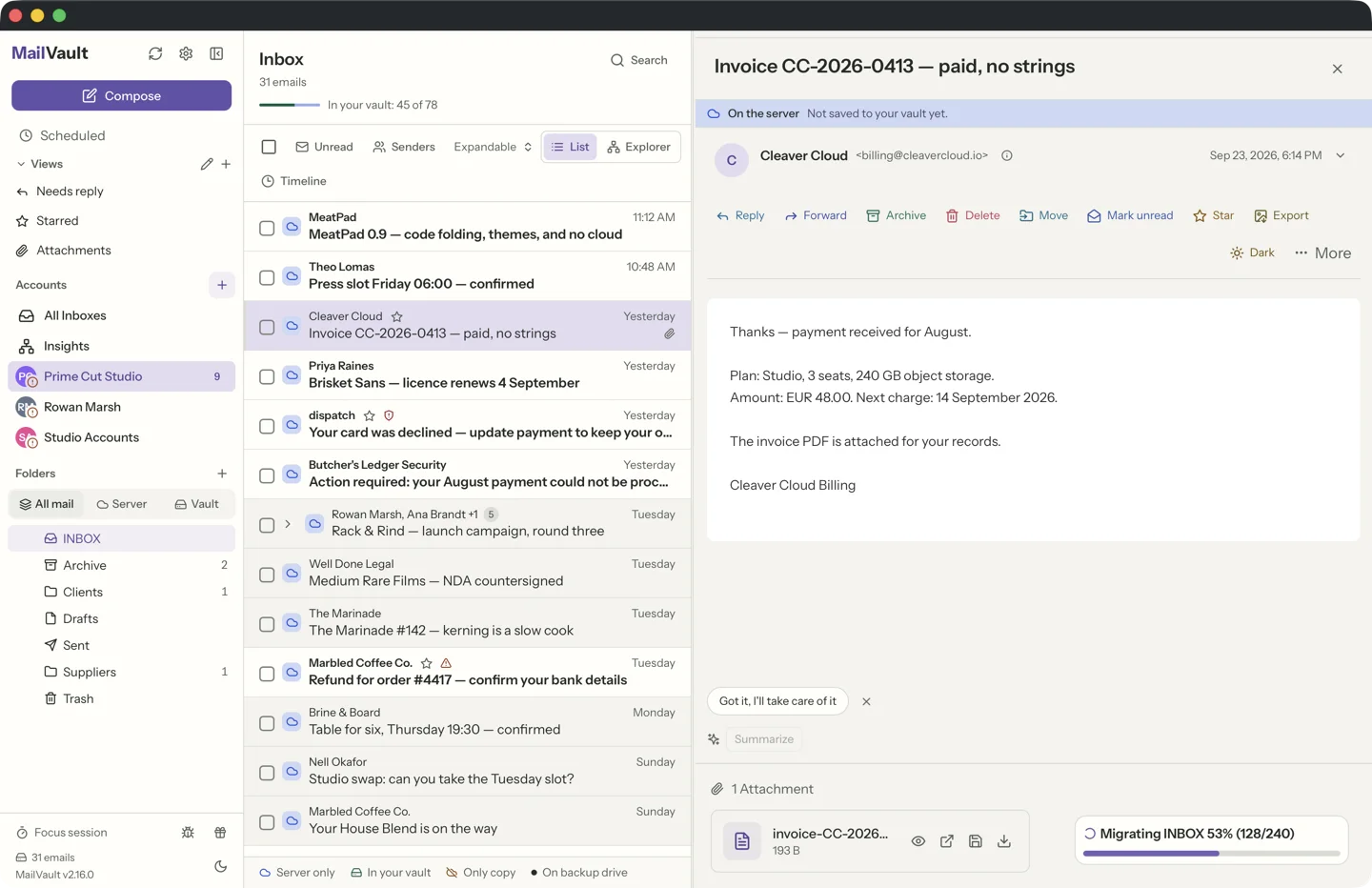
Keep the exported EML folder for the old archive. For mail still in an accessible account, MailVault can save a local copy as individual .eml files. Opening an exported EML file on the Mac is a separate step.