Skip to content
Help topics
Version 2.20.0
Reviewed

Explorer and Insights

On this page

Two ways to look at a mailbox you already have: Explorer groups it, Insights charts it. Both are free and both read only what is on your disk.

What is Explorer?

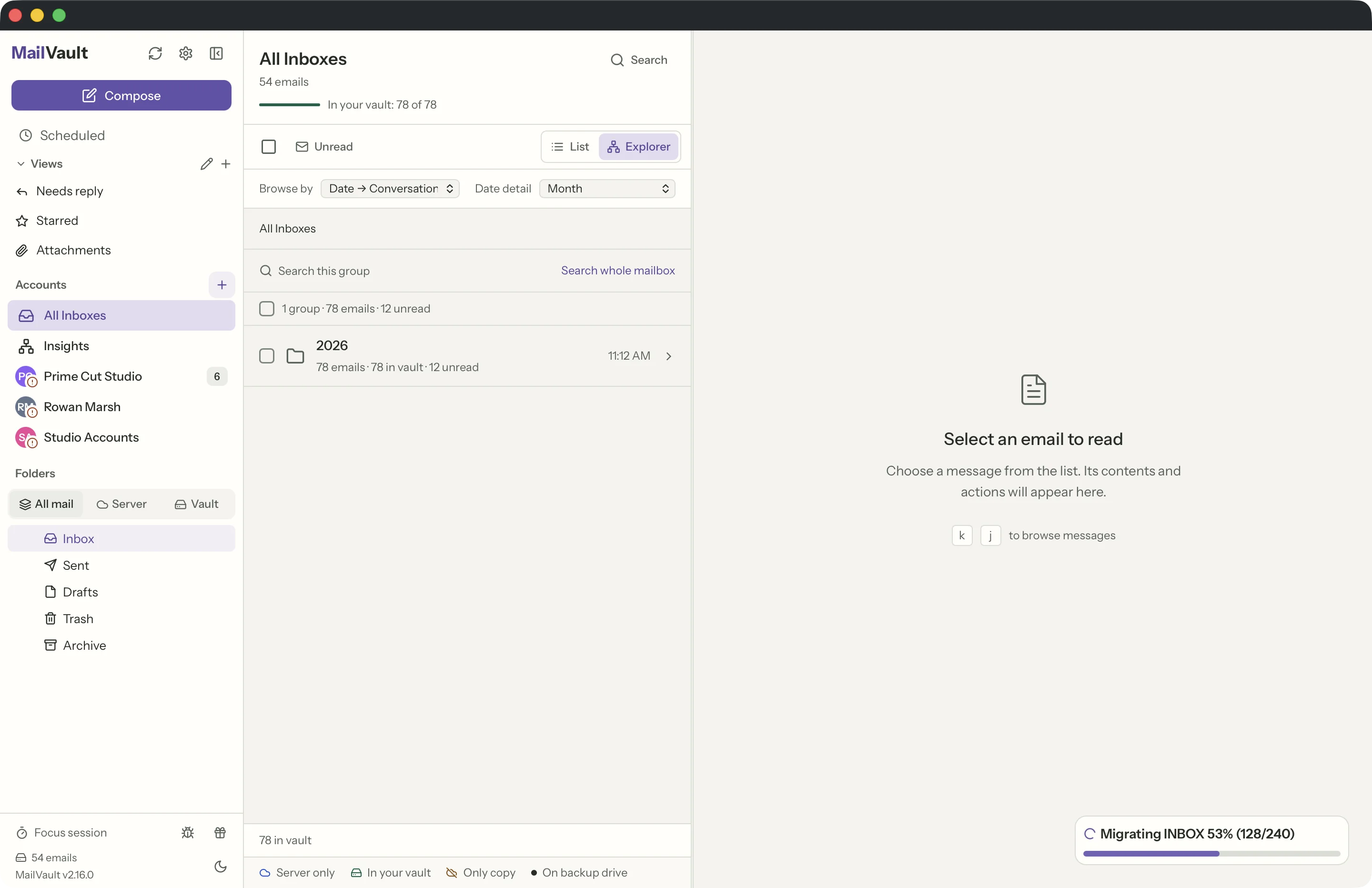
Explorer is a second way through the mail you already have. Instead of one long list, it folds the messages in the current folder into groups you can walk down into — by date, by sender, or by date then conversation. Switch it on with the List / Explorer control above the message list; nothing is moved, copied or re-filed, and switching back to List leaves everything as it was.

Each group tells you what is inside it before you open it: how many messages it holds, how many of those are already saved in your vault, and how many are unread. Open a group and the messages inside render exactly as they do in the normal list, with the same reader and the same actions.
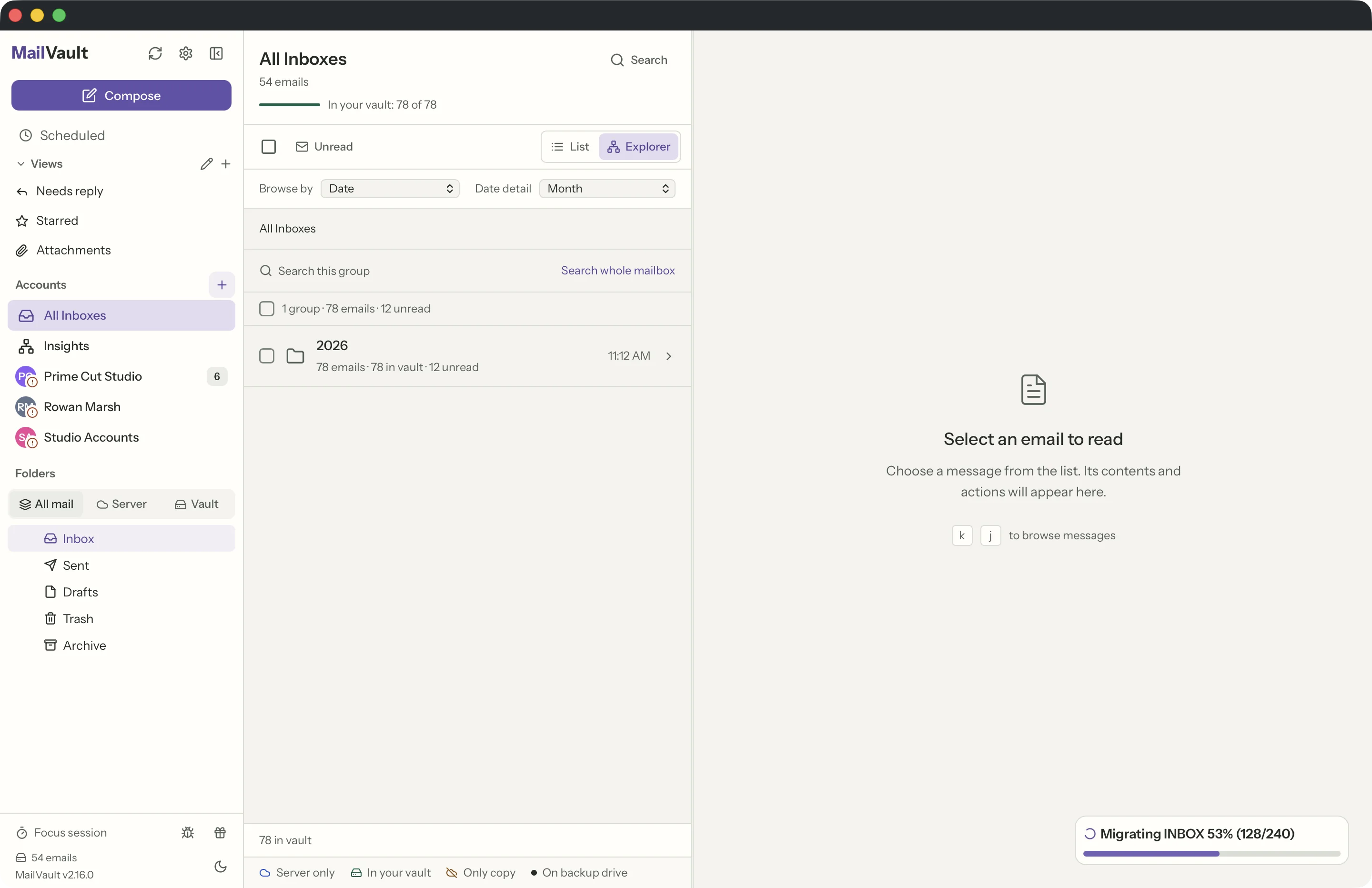
MailVault Explorer grouping a mailbox by date, with a month group showing message, vault and unread counts · MailVault version 2.16.0 en
Browse by date: months, or days if you want finer detail.

Can I see everything one person ever sent me?

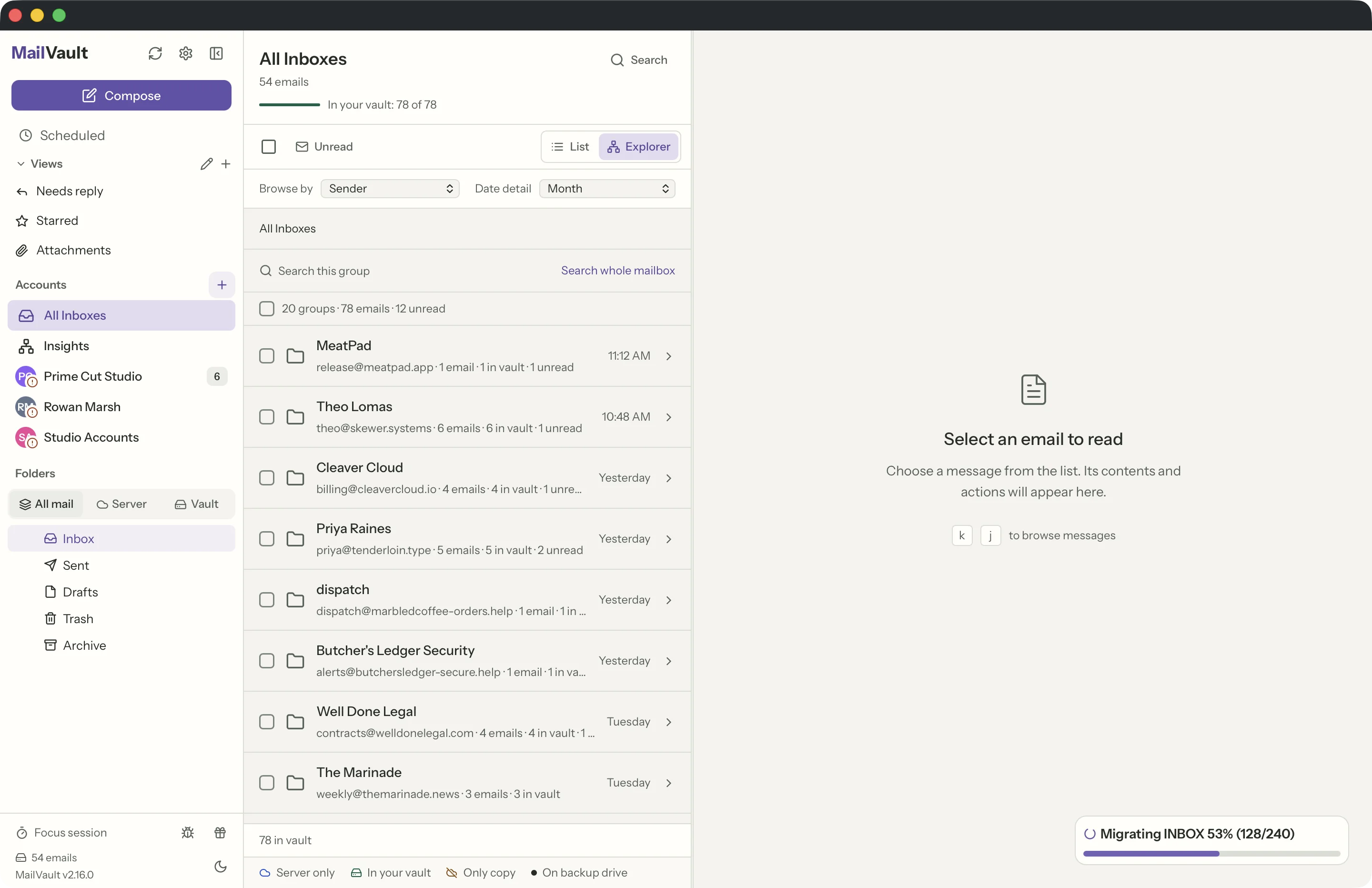
Yes — set Browse by to Sender. Every correspondent becomes one group holding all of their messages in the current folder, newest first, with the date of the most recent one on the row.

The checkbox on a group row selects every message in it at once, so "archive everything this newsletter ever sent" is two clicks rather than a long shift-click. The same works for delete and export.

MailVault Explorer grouped by sender, with one group per correspondent · MailVault version 2.16.0 en
Browse by sender: one group per correspondent, selectable as a whole.

What does “Date → Conversation” do?

It nests one level deeper. The top level is still months (or days), but opening one shows the conversations that happened in that period rather than loose messages. Open a conversation to read it, or use Open full conversation to hand it to the normal thread view.

This is the view for finding something you remember by roughly when it happened rather than by who sent it.

MailVault Explorer in date-then-conversation mode, showing conversations grouped under a month · MailVault version 2.16.0 en
Date → Conversation: months open into the threads inside them.

Does search still work in Explorer?

Yes, and it works at two levels. The search box inside Explorer filters the group you are standing in, which is the fastest way to find one message inside a large sender or month group. If you want the whole mailbox instead, Search whole mailbox takes you back to the list with the normal search box open.

Explorer also remembers where you were. Your grouping, date detail and the group you had open are kept per folder and per account, and survive a restart.

What is Insights?

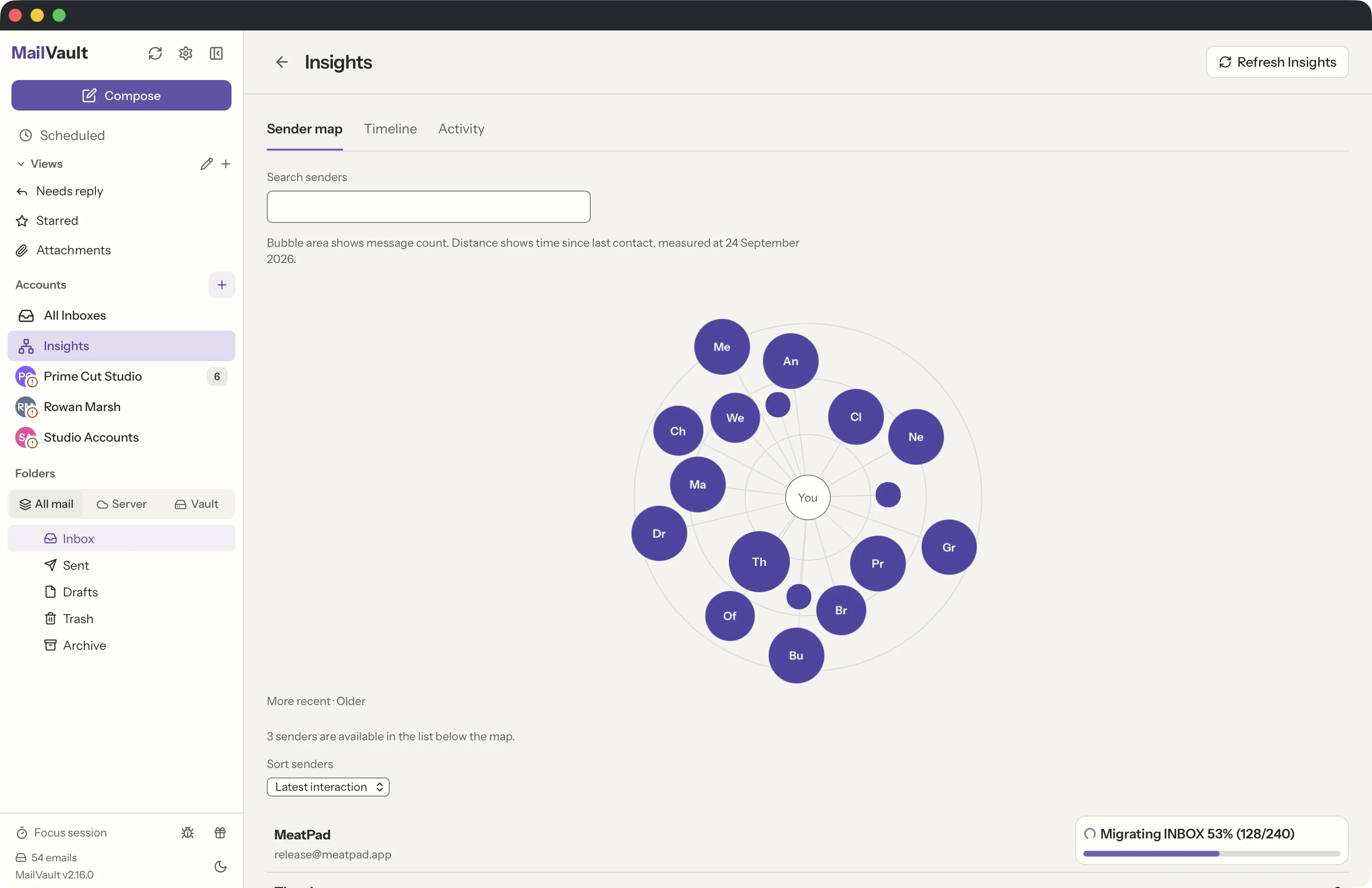
Insights is a full-screen view of who you correspond with, reached from Insights in the sidebar. It reads the message headers MailVault already holds on your disk — sender, recipients and dates — and draws them three ways.

The Sender map puts you in the middle and every correspondent around you as a bubble. The area of a bubble is how many messages that person accounts for; the distance from the centre is how long it has been since you last heard from them. Recent, talkative people sit close and large; someone who wrote once, years ago, sits far out and small.

Click any bubble to see the messages behind it and read them without leaving the page.

MailVault Insights sender map, with correspondents drawn as bubbles sized by message count and placed by recency · MailVault version 2.16.0 en
The sender map: bubble area is volume, distance is time since the last message.

What do the Timeline and Activity views show?

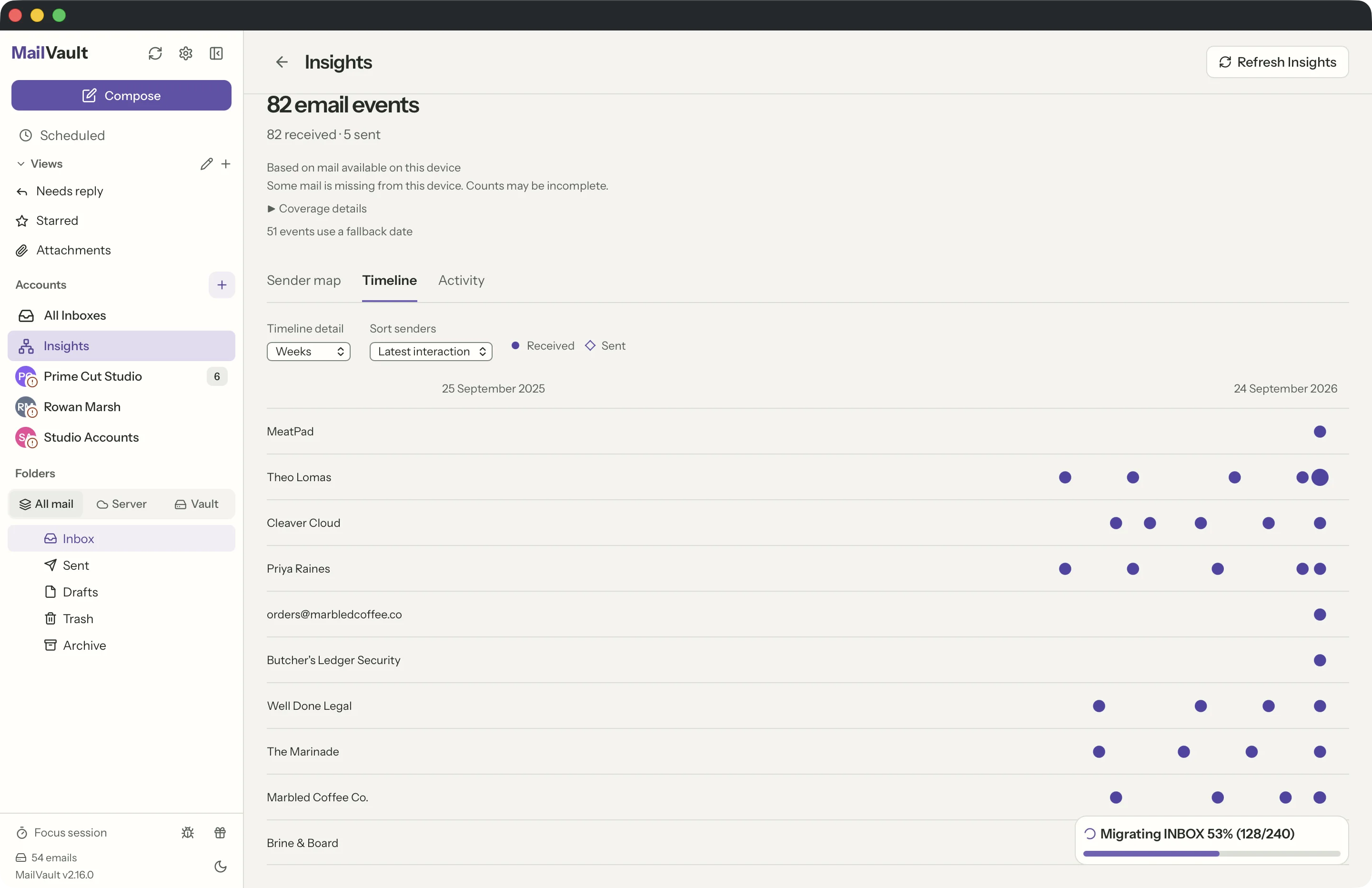
Timeline gives each sender a lane across a real time axis, with circles for messages you received and diamonds for messages you sent. It is the view that shows a relationship starting, going quiet, or turning one-sided. Zoom between weeks, days and individual messages.

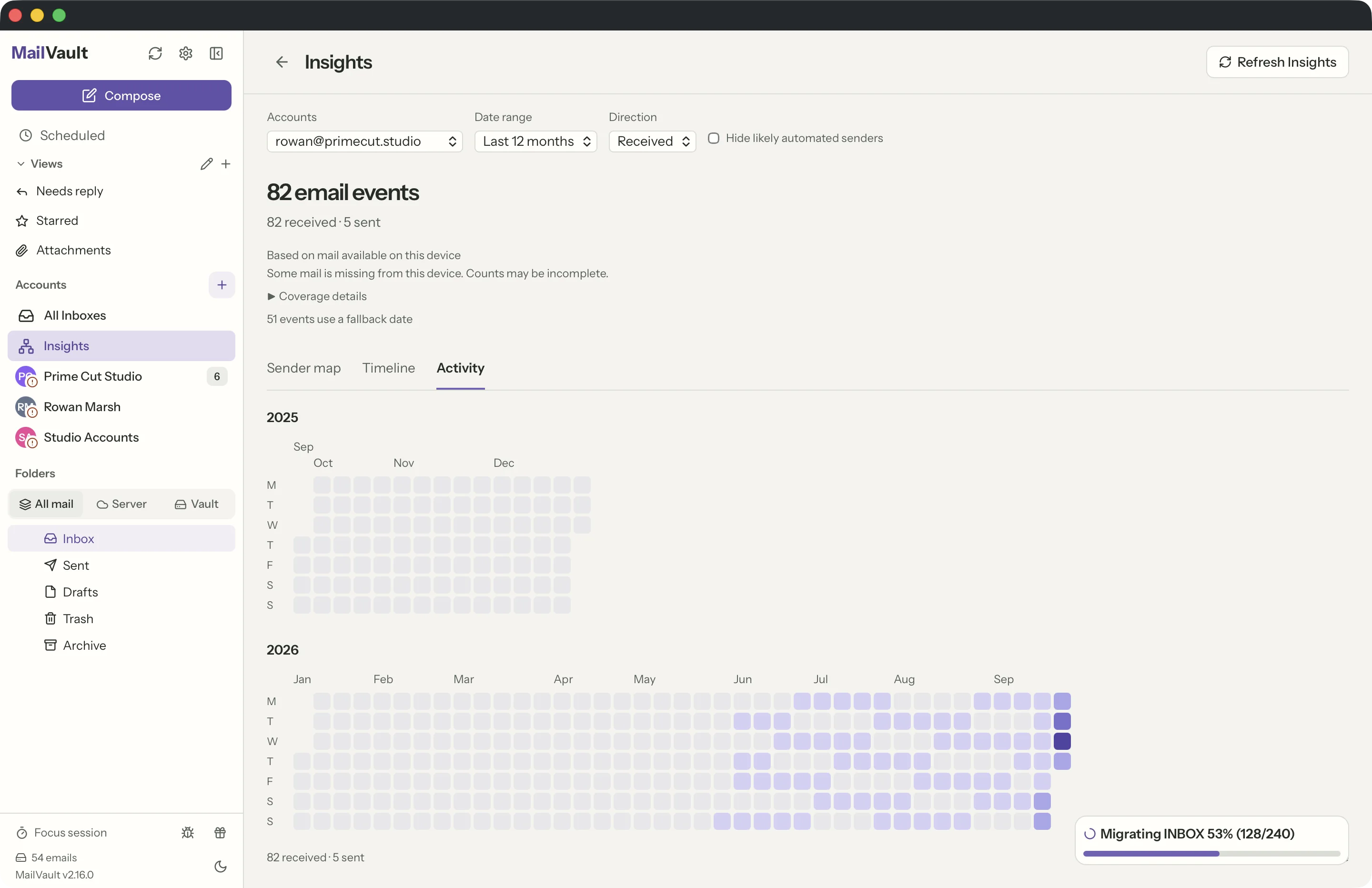
Activity is a calendar grid, one square per day, shaded by how much mail moved that day. Click a day to see exactly what arrived.

All three views share the same controls at the top: which account, which date range — 30 days, 90 days, 12 months or dates you choose — and whether you are looking at mail received, mail sent, or both. Hide likely automated senders takes newsletters and no-reply addresses out of the picture in one tick.

MailVault Insights timeline, one lane per sender with received and sent marks along a time axis · MailVault version 2.16.0 en
Timeline: one lane per sender, received and sent marked separately.
MailVault Insights activity calendar, a grid of days shaded by how much mail moved · MailVault version 2.16.0 en
Activity: a year of mail at a glance, one square per day.

Does Insights send my email anywhere?

No. Insights is built entirely from header data already stored on your own machine — the cached headers of folders you have opened and the messages in your vault. No message bodies are read, no attachments are touched, and nothing is uploaded to any service. There is no account to create and it works with the network off.

Because it can only describe mail that is on this device, Insights says so plainly: a coverage note under the controls lists which folders it read and how much of each is cached locally, so a quiet-looking month is never mistaken for a fact when it is really a gap.

Are Explorer and Insights part of Premium?

No. Both are free, in the free version, with no account and no sign-in. They arrived in MailVault 2.13.0.

Note that Insights is not the same thing as the older sender panel in the reading pane, which shows the exchange history with whoever wrote the message you have open. That one is still there and also free; Insights is the whole-mailbox view.

Back to all FAQ topics

Still have questions?

See it in MailVault

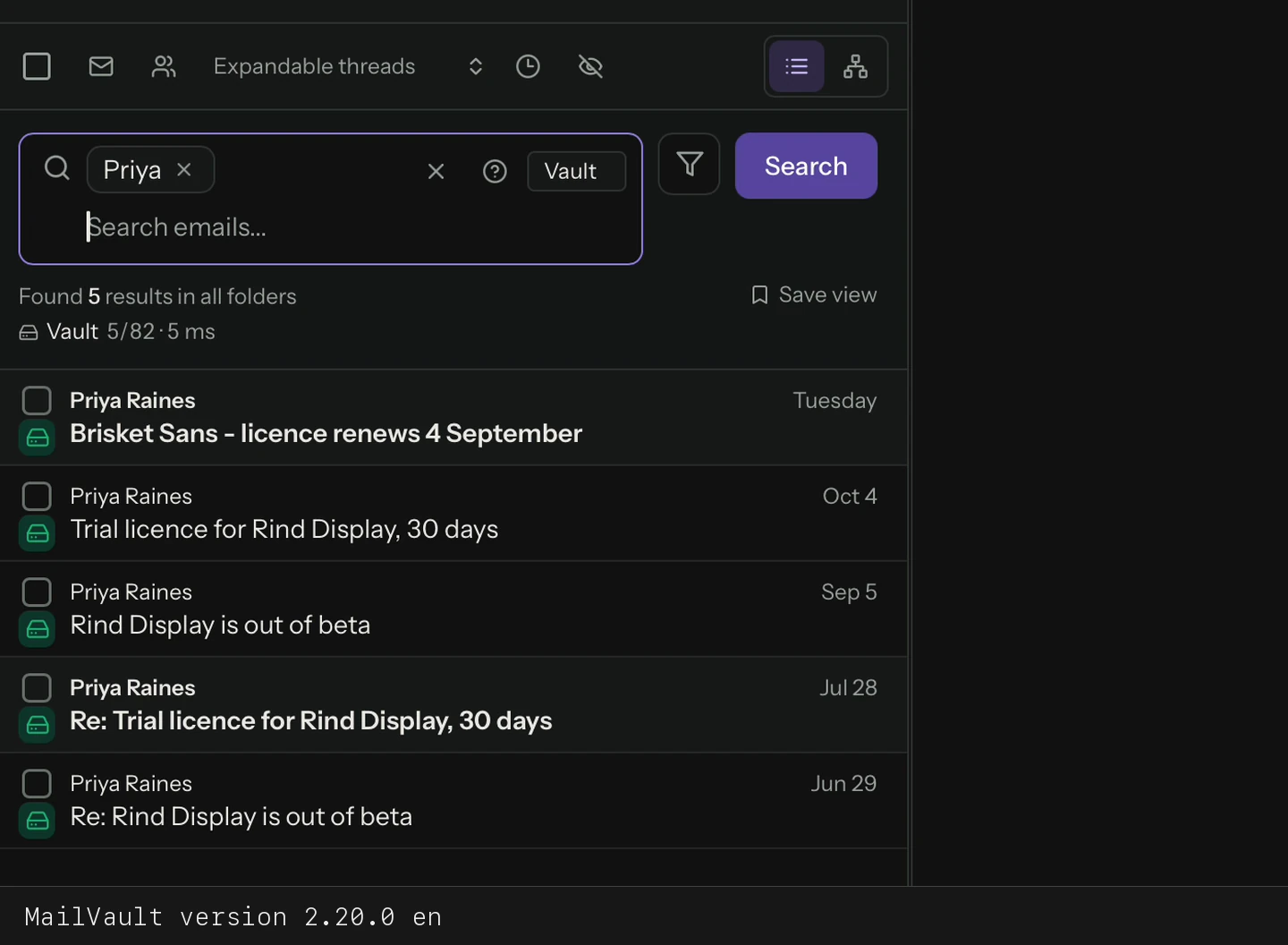
Search local messages for Priya and display matching mail · MailVault version 2.20.0 en
Search local messages for Priya and display matching mail
Video transcript

Enter Priya in the search field. Run the search and review matching messages stored on this computer.

Version 2.20.0
Reviewed