
Skip to content

Storage and Your Vault

Where MailVault keeps your mail, how Maildir and JMAP storage differ, and how to move or convert the vault.

Where are my emails stored?

By default, your vault is a folder of standard .eml files organized in Maildir format on your computer — one file per email, no database required. Your data never leaves your computer and is never uploaded to any cloud service. Because .eml is a widely supported email format, your emails can be opened by Apple Mail, Thunderbird, Outlook, or other apps that support EML — you're never locked in to MailVault.

The exact folder

MailVault is a sandboxed app, so on macOS the vault sits inside the app's own container — not directly under ~/Library/Application Support, which is where most people look first:

~/Library/Containers/com.mailvault.app/Data/Library/Application Support/com.mailvault.app/

On Linux it is ~/.local/share/com.mailvault.app/ for the .deb package, and ~/snap/mailvault/current/.local/share/com.mailvault.app/ for the Snap.

Searching the drive for com.mailvault.app usually finds nothing, and that is expected: ~/Library is hidden in Finder and Spotlight does not index it. Open it by path instead.

Opening the hidden Library folder on a Mac

  1. Go to Folder. In Finder press Shift + Command + G, type ~/Library — or paste the full path above to land straight in the vault — and press Return.
  2. The Go menu. In Finder, open the Go menu and hold Option: Library appears in the list while the key is held.
  3. Show it for good. Finder → Go → Home (Shift + Command + H), then press Command + J and tick Show Library Folder. It stays visible from then on.
  4. Terminal. One command opens the vault in Finder:
open ~/Library/Containers/com.mailvault.app/Data/Library/Application\ Support/com.mailvault.app

MailVault also tells you the folder it is actually using: Settings → Backup & Restore → Backup Settings → Where your mail is stored. If you have moved the vault to another drive, that is the path to open — the one above is only the default.

Directory structure:

com.mailvault.app/
├── accounts.json                 ← which address each account folder holds
└── Maildir/
    └── 43483205-7efc-4f79-…/     ← one folder per account
        └── INBOX/
            ├── local-index.json  ← cached list for fast loading
            └── cur/
                ├── 101:2,.eml    ← a message, no flags set
                └── 102:2,AS.eml  ← archived + seen
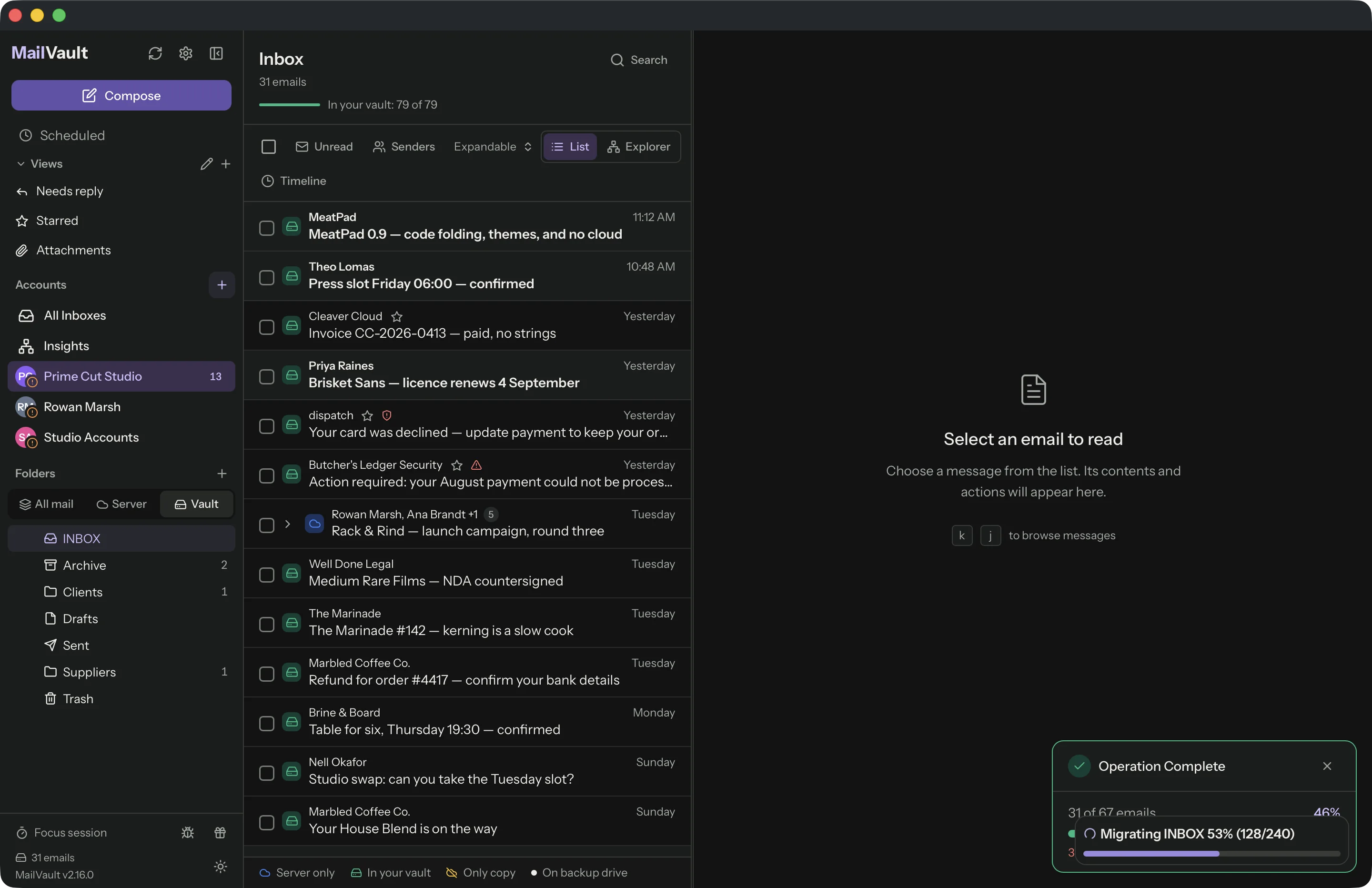
How much of my mail stays on this computer?

Settings → Storage → Download mode controls that, and Settings → Accounts → Advanced can give one account a mode of its own.

  • On Demand fetches a message when you open it and does not keep it. Full-text search only covers what is already on this computer.
  • Keep Recent, the default, keeps the last 1, 3, 6 or 12 months and removes older cached copies from this computer while the server keeps its copy.
  • Index Only downloads the same period, indexes it for search, then removes it, so opening a message shows a preview at once while the full message downloads.
  • Hoarder Premium downloads every folder and all history in the background and keeps it.

Backups and archived mail are never removed by any mode, and a lapsed Premium subscription never deletes anything.

What are .eml files and Maildir? Why does it matter?

.eml (RFC 5322) is the internet standard format for email messages. Every email — headers, body, and attachments — is stored as a single, self-contained text file. Unlike proprietary databases, .eml files can be opened by any email client (Apple Mail, Thunderbird, Outlook) and read with any text editor.

Maildir is a proven directory structure for storing email, used by mail servers for decades. Each email is one file, so there's no single database that can corrupt — if one file is damaged, the rest of your archive is unaffected. Together, .eml + Maildir mean your emails are future-proof, portable, and never locked in to any single application.

Filename flags:

Each message is named <uid>:2,<flags>.eml, the standard Maildir naming — the characters after 2, track status: A = Archived, S = Seen, R = Replied, F = Flagged. So 102:2,AS.eml is message 102, archived and seen.

Can I access my emails offline?

Yes. Once your emails are synced, they are stored locally and you can read, search, and browse all of them without an internet connection. You only need internet to sync new emails or send messages.

MailVault local view showing emails kept on disk after deletion from the server · MailVault version 2.16.0

How are attachments handled?

Attachments are embedded inside each .eml file as MIME parts — they are not stored as separate files. When you open an email, MailVault's Rust backend parses the MIME structure and extracts attachments on the fly. You can Open, Save As, or Show in Folder any attachment directly from the email viewer. Extracted attachments are temporarily cached for quick re-access.

Can I store my mail somewhere other than the default application folder?

Yes. By default MailVault keeps its mail store inside the app's own Application Support folder on your startup disk. You can move that store to any folder on any drive — an external SSD, a second internal disk — which matters once an archive grows to tens of gigabytes.

Only mail data moves: the messages, header caches, attachment cache and folder lists. Accounts, settings and logs stay in the app's own folder, so MailVault can always start far enough to tell you a drive is missing and ask for the folder again.

The move is verified before anything is deleted. MailVault copies everything to the new folder, checks that every file arrived at the correct size, switches over, and only then removes the originals. A move interrupted by a disconnect or a crash leaves the current store intact; run it again and it resumes rather than recopying what is already there.

The folder is stamped and recognised. A small marker file identifies the store, so if you later reconnect the drive or move the folder by hand you can point MailVault back at it, and MailVault will refuse a folder that belongs to a different store or that holds no mail.

If the drive is not connected, MailVault reports the mail store as unavailable instead of quietly starting a second archive in the default location and leaving you with two half-complete copies. Reconnect the drive, or select the folder again. You can also switch back to the default location at any time — the mail stays where it is until you move it.

Not the same as a second copy. This changes where the live store lives. An external backup location adds an extra cold copy on top of it. Using both — mail store on a fast external SSD, cold copy on a NAS — is a reasonable setup.

What is the external backup location (second copy)?

MailVault always keeps a working copy of your mail in the app's own storage — that is what you read, search and open. An external backup location adds a second, independent copy on a drive you control: an external SSD, a NAS share, or a synced folder.

  • Written alongside the working copy. During a backup run each message is saved to both places, in the same .eml + Maildir layout — so the second copy opens in Apple Mail, Thunderbird or any other client without MailVault.
  • Cold storage, not a mirror. The app never reads it day to day. Emails deleted on the server, or removed inside MailVault, stay in the external copy.
  • Read and write flags survive both directions. The copies are reconciled before a run, so a message you read stays read.
  • Independent of the app. If that computer dies or you uninstall MailVault, the external folder is still a complete, self-describing mail archive.

Set it in Settings → Backup → “Second copy — external cold storage” and pick any folder. On macOS, MailVault saves a security-scoped bookmark for that folder, so access survives restarts and app updates — a raw path would not. A status badge shows Ready, Needs reauthorization, Unavailable or Access denied, and reauthorizing is one click.

If the drive is unplugged mid-backup, the working copy still completes and MailVault reports how many messages did not reach the external copy. The next run copies them across — nothing is lost, and the failure is never silent.

Can I change the vault storage format?

Yes. Settings > Storage lets you convert between Maildir and JMAP storage. Maildir is the default, with one .eml file per message. JMAP storage keeps the original message bytes plus a standard JMAP JSON record, and stores identical messages across folders only once. Choose whether to keep the old files aside or delete them after each message is verified. Conversion runs in the background and resumes after a restart. This storage choice is independent of whether your account uses IMAP, Microsoft Graph or JMAP.

Back to all FAQ topics

Still have questions?