
How to back up Outlook.com and Hotmail email to your Mac
There are four ways to back up Outlook.com or Hotmail email to a Mac that work today. You can export an .olm file from legacy Outlook for Mac, export .mbox files from Apple Mail, export from Thunderbird with an add-on, or let MailVault save every message as an .eml file. This page compares them, shows what each one gives you, and explains how to check the backup before you rely on it. If you want to delete mail online after the backup, read how to free up space in Hotmail and Outlook.com.
Quick answer
- One copy, today, with what you already have: add the account to Apple Mail, then use Mailbox > Export Mailbox.
- You already use Outlook for Mac: export an .olm file from legacy Outlook.
- A copy you keep up to date and can search: MailVault (free) or Thunderbird (free).
- Whatever you choose: open old emails and attachments from the backup before you delete anything online.
Before you start
- Microsoft's own export needs desktop Outlook. Microsoft's help page says you export an Outlook.com mailbox with a desktop version of Outlook: a .pst file on Windows, or an .olm file from legacy Outlook for Mac. If you do not have Outlook, Microsoft suggests a free 30-day Microsoft 365 trial.
- Other apps must use modern sign-in. Microsoft says that since September 16, 2024, other mail apps must use modern sign-in (OAuth) to reach Outlook.com, not only a user name and password. Apple Mail, Thunderbird and MailVault all support it.
- Check your disk space. Look at Settings > Account > Storage in Outlook.com. Your backup needs about that much free space on the Mac.
Method 1: Legacy Outlook for Mac (.olm file)
- Add your Outlook.com account to Outlook for Mac and let it finish syncing.
- Switch to legacy Outlook. Microsoft documents the export for legacy Outlook for Mac only, and says support for legacy Outlook for Mac ends in October 2026. Its help page does not describe the export for the new Outlook for Mac, so check Microsoft's page for the current status before you rely on this method.
- On the Tools tab, choose Export. If you do not see it, check for updates, then look in the File menu.
- In Export to Archive File (.olm), tick the items you want, choose Continue, and pick where to save the file.
What you get: one .olm file with your mail, and contacts and calendar if you ticked them. It is meant to be imported back into Outlook for Mac with Tools > Import. Good for: people who already use Outlook for Mac.
Method 2: Apple Mail (.mbox files)
- In Mail, choose Mail > Add Account, type your Outlook.com address and follow the steps. Microsoft says Apple Mail uses modern sign-in when you set the account up as Outlook.com.
- Choose Mail > Settings > Accounts > Account Information, and set Download Attachments to All. Mail always downloads pictures, PDFs, video and audio. With Recent, other attachment types download only for the past 15 months.
- Wait until every folder has downloaded. Open a few of your oldest emails to be sure.
- Select one or more mailboxes and choose Mailbox > Export Mailbox. Pick a folder and confirm.
What you get: one .mbox package per mailbox. If you export again, Mail makes a new file next to the old one, such as My Mailbox 3.mbox, instead of replacing it. To read the backup later, use File > Import Mailboxes; the messages appear in a new mailbox called Import. Good for: a quick copy with nothing to install. Each export is a snapshot, so new mail needs a new export.
Method 3: Thunderbird (.mbox or .eml files)
- Install Thunderbird and add your Outlook.com account. Mozilla's 2026 guide says to set the authentication method to OAuth2 and to allow cookies from Microsoft sites in Thunderbird's own settings.
- In Account Settings > Synchronization & Storage, turn on Keep messages for this account on this computer. Without it, Thunderbird keeps only the message headers and fetches the rest from the server.
- Let every folder download.
- Install the ImportExportTools NG add-on. It exports a folder as an .mbox file, or the messages in a folder as .eml, HTML, PDF, CSV or plain text files.
Good for: people who want a free, open-source mail app for daily use as well. A work or school account may need your administrator to approve Thunderbird first.
Method 4: MailVault (.eml files you can search)
MailVault is a free mail app for macOS, Windows and Linux that keeps a copy of your mail in a vault on your computer. There is no MailVault account, and your mail does not pass through a MailVault server. The steps below are for the version you download from our website. The Mac App Store edition differs in a few places, such as backup settings and moving the vault.
Connect your Outlook.com account
- Download MailVault and open it. Use version 2.19.1 or later, which fixed archiving for Outlook.com accounts.
- Choose Add Account, then Outlook / Microsoft 365, and type your address.
- Select Sign in with Microsoft. Microsoft's sign-in page opens in your browser. When you return, MailVault adds the account on its own.
MailVault recognizes outlook.com, hotmail.com and live.com addresses (and the regional versions) and connects them through Microsoft Graph, Microsoft's mail API. You do not enter IMAP settings or an app password. Work and school Microsoft 365 accounts sign in with OAuth2 over IMAP instead, and an organization with strict rules can set its own client ID and tenant ID under Advanced (Corporate).

Make the backup
- Open Settings > Backup & Restore > Backup Settings.
- Under What to back up, choose All emails (download from server). The other choice, Archived emails only, copies only mail that is already in your vault.
- If you have an external drive, choose a folder for the Second copy. It is a separate copy that MailVault does not read day to day.
- On the Backup Schedule tab, select Back up all accounts now. Manual backups are free, with no quota.

What you get: one .eml file per message in Maildir folders, sorted by account and folder. On a Mac the default place is ~/Library/Containers/com.mailvault.app/Data/Library/Application Support/com.mailvault.app/. You can move the vault to another drive, except in the Mac App Store edition. Later backups are incremental: only new emails are downloaded. The mail is searchable in MailVault, offline too.
Free and Premium: connecting the account, reading, searching, archiving and manual backups are free. Scheduled automatic backups, backup health monitoring, Hoarder (which downloads every folder and all history in the background and keeps it) and one-step Archive & Delete are Premium, currently $4 a month or $25 a year at early access prices.
Known limits for Outlook.com accounts: because these accounts use Microsoft Graph, Snooze is not available yet, an MBOX file cannot be restored to the server, a deleted email can be recovered on your computer but not back to the server, and the Inbox count after the connection test is not shown. Reading, deleting, moving, marking and backing up work as on other accounts.
The four methods side by side
| Method | Cost | Result | New mail later | Where you search it |
|---|---|---|---|---|
| Legacy Outlook for Mac | Needs desktop Outlook | One .olm file | Export again | Outlook for Mac, after import |
| Apple Mail | Comes with macOS | One .mbox package per mailbox | Export again | Apple Mail, after import |
| Thunderbird and ImportExportTools NG | Free | .mbox per folder, or .eml, HTML or PDF per message | Thunderbird keeps syncing; export again for files | Thunderbird |
| MailVault | Free; Premium for schedules | One .eml file per message, in Maildir folders | Back up again; only new mail downloads | MailVault, with a local search index |
Last checked: October 2026. Apple Mail, Thunderbird and Outlook for Mac each do more than backups. This table covers only what matters for keeping a copy of Outlook.com mail.
How to check that your backup is complete
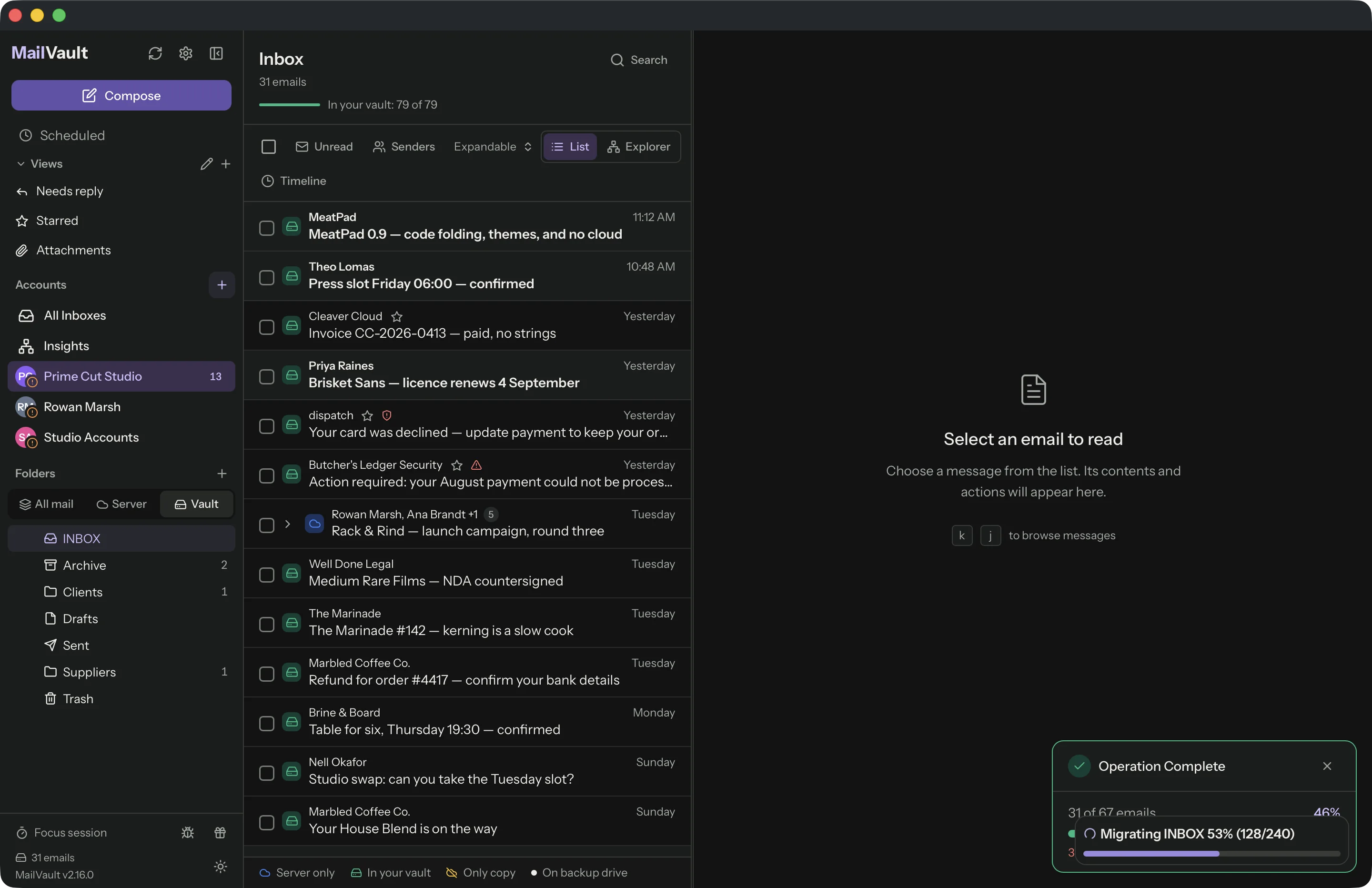
- Compare the counts. Note how many emails each large folder has in Outlook.com, and compare with the backup. In MailVault, the header of each folder shows how many of its emails are in your vault, for example In your vault: 79 of 79. A table of server and vault counts for every folder is part of Premium (backup health monitoring).
- Open the oldest emails, not only recent ones. Old folders are where gaps hide.
- Open attachments of a few kinds: a PDF, a photo, an office document.
- Search for something you remember from years ago, such as a name or an order number.
- Open the files outside the app that made them. Double-click an .eml file and it opens in Apple Mail. Import an .mbox with File > Import Mailboxes.
- Keep a second copy on another drive. One copy on one laptop is not a backup.
Frequently asked questions
Can I export Hotmail emails to a Mac without Outlook?
Yes. Apple Mail can download your Outlook.com mail and export each mailbox as an .mbox file. Thunderbird can do the same with an export add-on, and MailVault saves each message as an .eml file. Microsoft's own export needs a desktop version of Outlook.
Which file format is best for an email backup?
A format that other apps can open. An .eml file holds one message with its attachments, and an .mbox file holds a whole mailbox. Apple Mail can open .eml files and import .mbox files. An .olm file is meant to be imported back into Outlook for Mac.
Does MailVault work with Hotmail and Live.com addresses?
Yes. MailVault treats outlook.com, hotmail.com and live.com addresses as personal Microsoft accounts. You sign in with Microsoft in your browser, and MailVault connects through Microsoft Graph, so there are no IMAP settings to enter.
Does an email backup stay up to date?
An export from Apple Mail or Outlook is a snapshot, so you export again to include new mail. In MailVault you run the backup again and only new emails are downloaded. Scheduled automatic backups are part of MailVault Premium.
Is there still an Export mailbox button in Outlook.com?
Microsoft's current help page describes exporting with a desktop version of Outlook only. Older guides mention an Export mailbox button in the Outlook.com settings. If you do not see it in your account, use one of the methods on this page.
What to do next
Pick one method and make the first copy this week, then check it with the list above. If your mailbox is already full, read what to do when Outlook storage is full first, so mail stops bouncing. The short overview in Outlook.com or Hotmail mailbox full and the provider-neutral guide to freeing up email storage explain how a local copy lets you delete online without losing mail. To weigh a local copy against a bigger plan, see archiving locally vs paying for more storage.
Back up Outlook.com to your Mac with MailVault
Free, with the source live on GitHub. Each email is a plain .eml file on your disk. Manual backups are free; scheduled backups are Premium.
Download MailVault freeSources: Microsoft, Export your Outlook.com mailbox, Export items to an archive file in legacy Outlook for Mac and Modern authentication methods now needed to continue syncing Outlook email in non-Microsoft email apps; Apple, Import or export mailboxes in Mail on Mac; Mozilla, Microsoft OAuth authentication and Thunderbird. Last checked: October 2026.