
I have thousands of emails. How do I delete them?
Delete thousands of emails by year, not by hand. Search for everything before a date, select all matching conversations and delete, or archive those years to your computer first and remove them from the server in one run.
Reviewed on .
Thousands of emails are not deleted one page at a time. Delete them by year: pick a cutoff, select everything older, and remove it in one go. If any of it might matter later, copy it to your computer first.
Decide what goes
Most full mailboxes are mostly old: newsletters, notifications and receipts from years ago. Pick a cutoff year you will not miss, such as everything before 2022. Keep anything you might need for taxes, warranties, contracts or account recovery, or keep a copy of everything and stop worrying about the choice.
Delete thousands of emails in Gmail or Outlook.com
Gmail: search for before:2022/01/01, tick the select-all box, click the link to select all conversations that match the search, then Delete. Narrow it with a sender, such as from:[email protected], to start with the noise.
Outlook.com: select an email from a sender and use Sweep to delete everything from them, or search a folder by date and delete the results. Then empty Deleted Items.
Either way, the deleted mail lands in Trash first and keeps counting towards your storage until it is emptied.
Archive by year, then delete, in MailVault
MailVault works with Gmail, Outlook, Yahoo, iCloud and any IMAP account. It copies the years you pick into a vault on your computer, then removes them from the server, so the mail leaves your provider without leaving your life.
Add the account in MailVault and open its Server view, which lists the mail that is still on the provider.
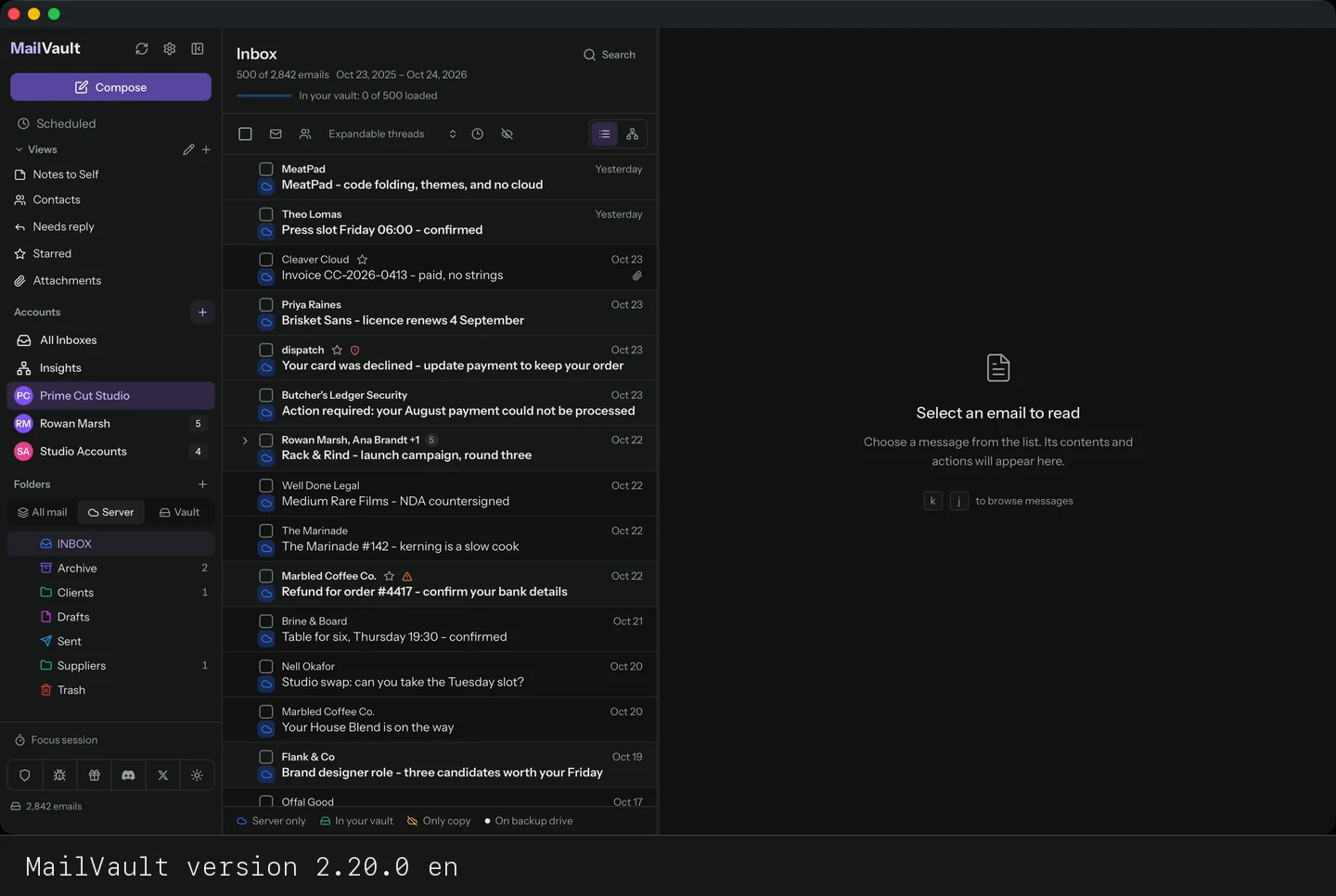
The Server view shows what is still stored at the provider. Click the Select messages box above the list. Bulk Email Operations opens and lists every year with its email count.
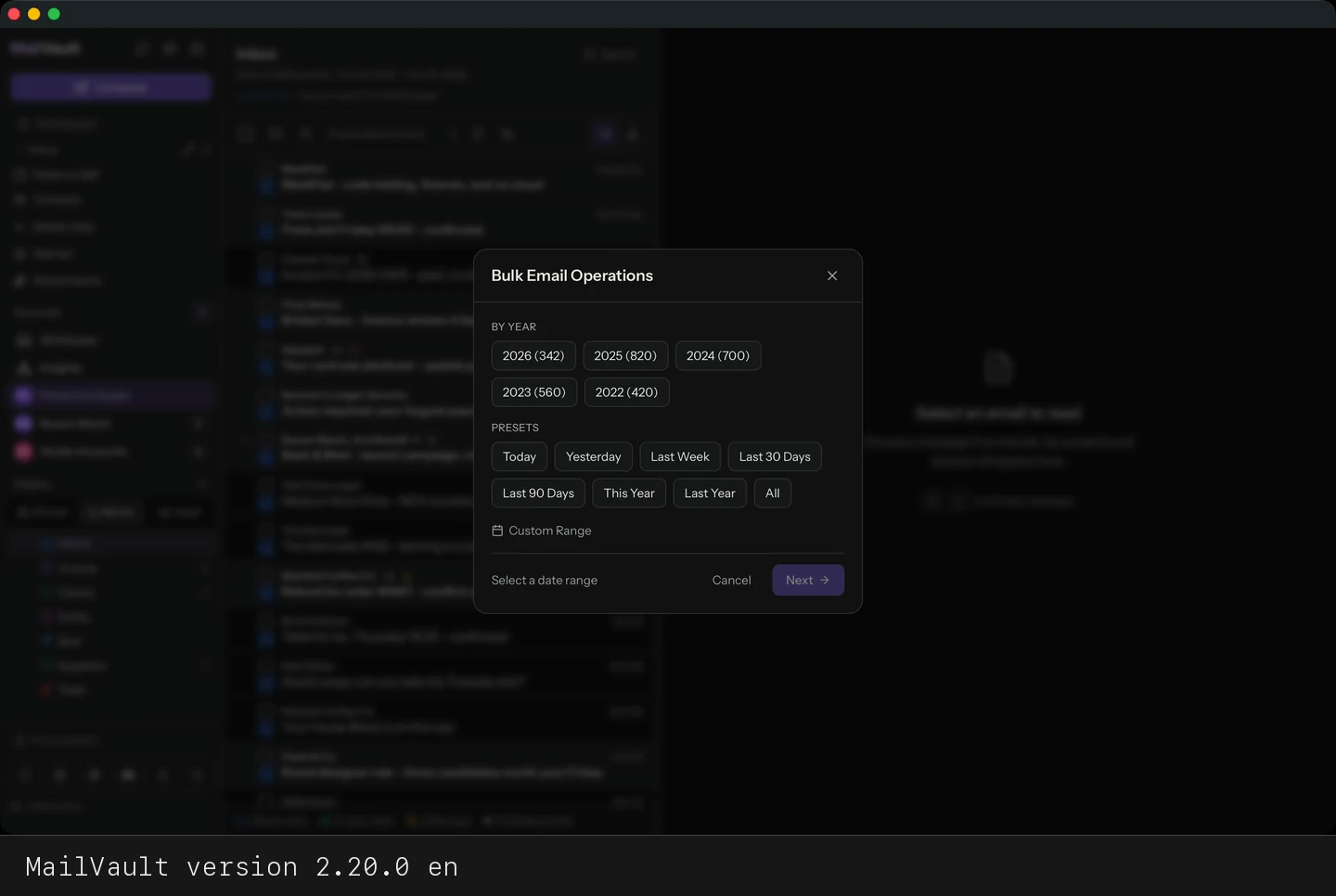
Bulk Email Operations groups the mailbox by year. Tick the years you want to clear, or set a custom date range. The dialog shows how many emails the choice selects.
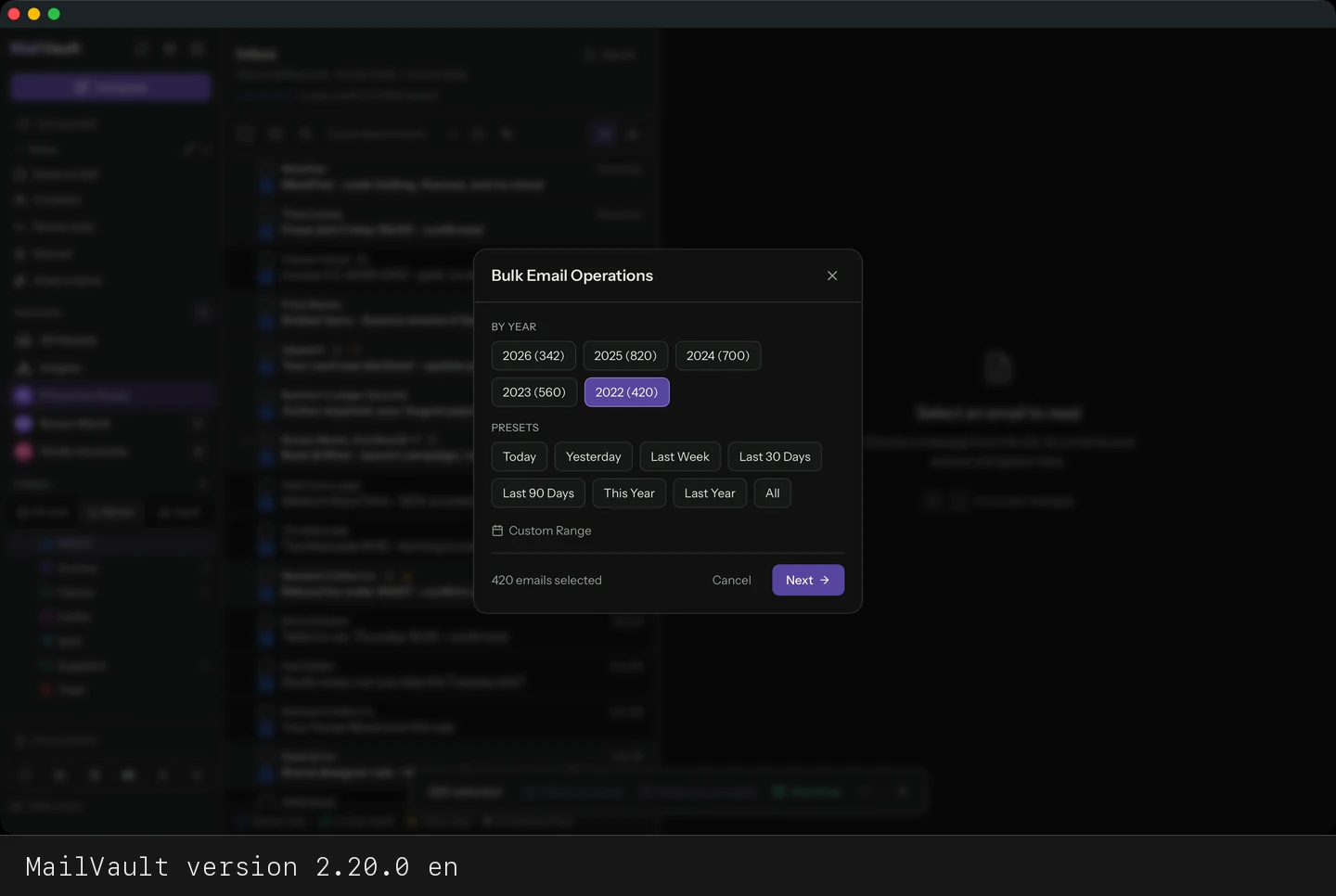
One year picked, with the number of emails it covers. Choose the action. Archive copies the emails into your vault on this computer and leaves the server alone. Archive & Delete copies each email, checks the copy, then removes it from the server.
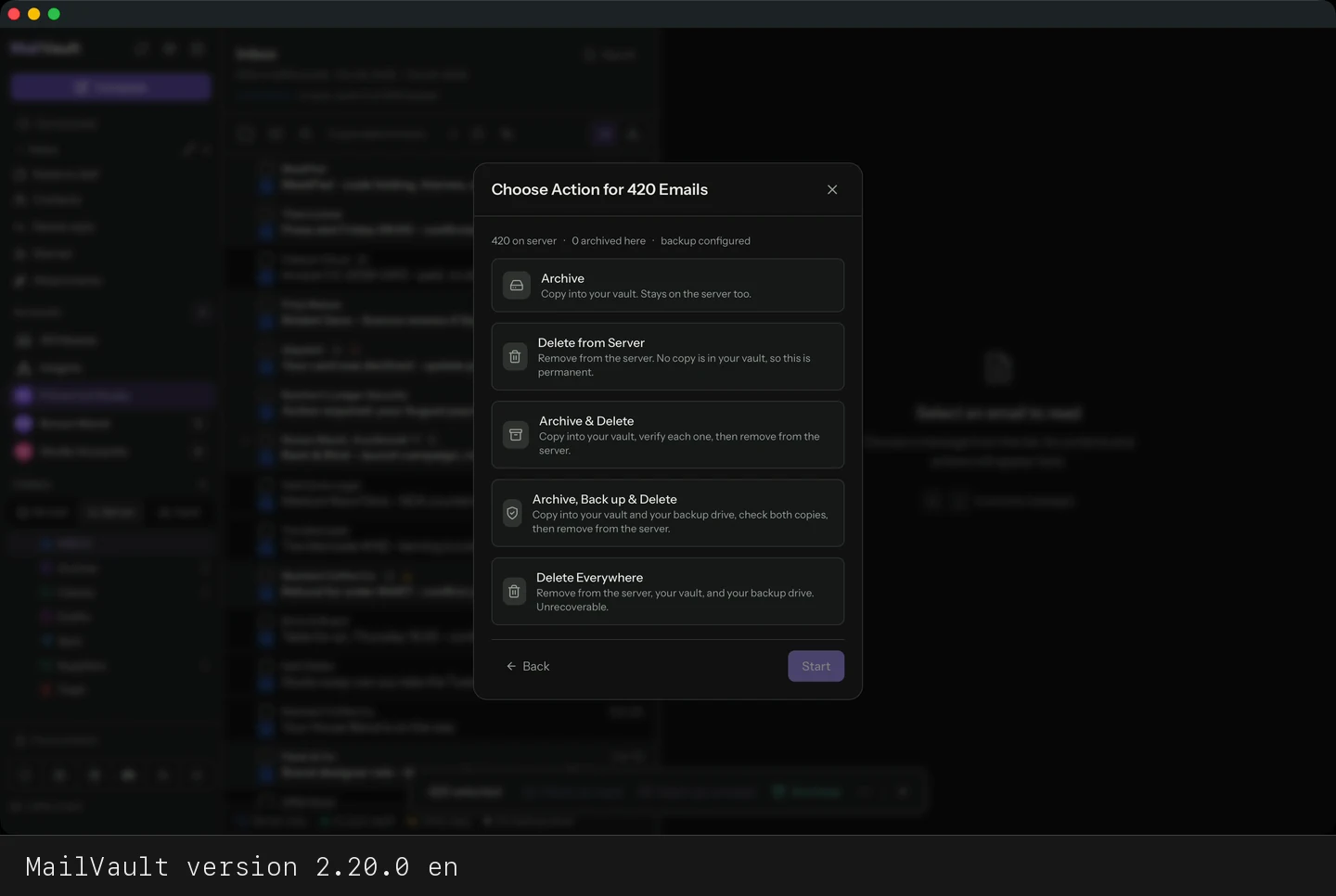
Every action says what happens to the server copy and to your vault copy. Read the confirmation and start. Progress runs in the corner of the window while you keep reading mail.
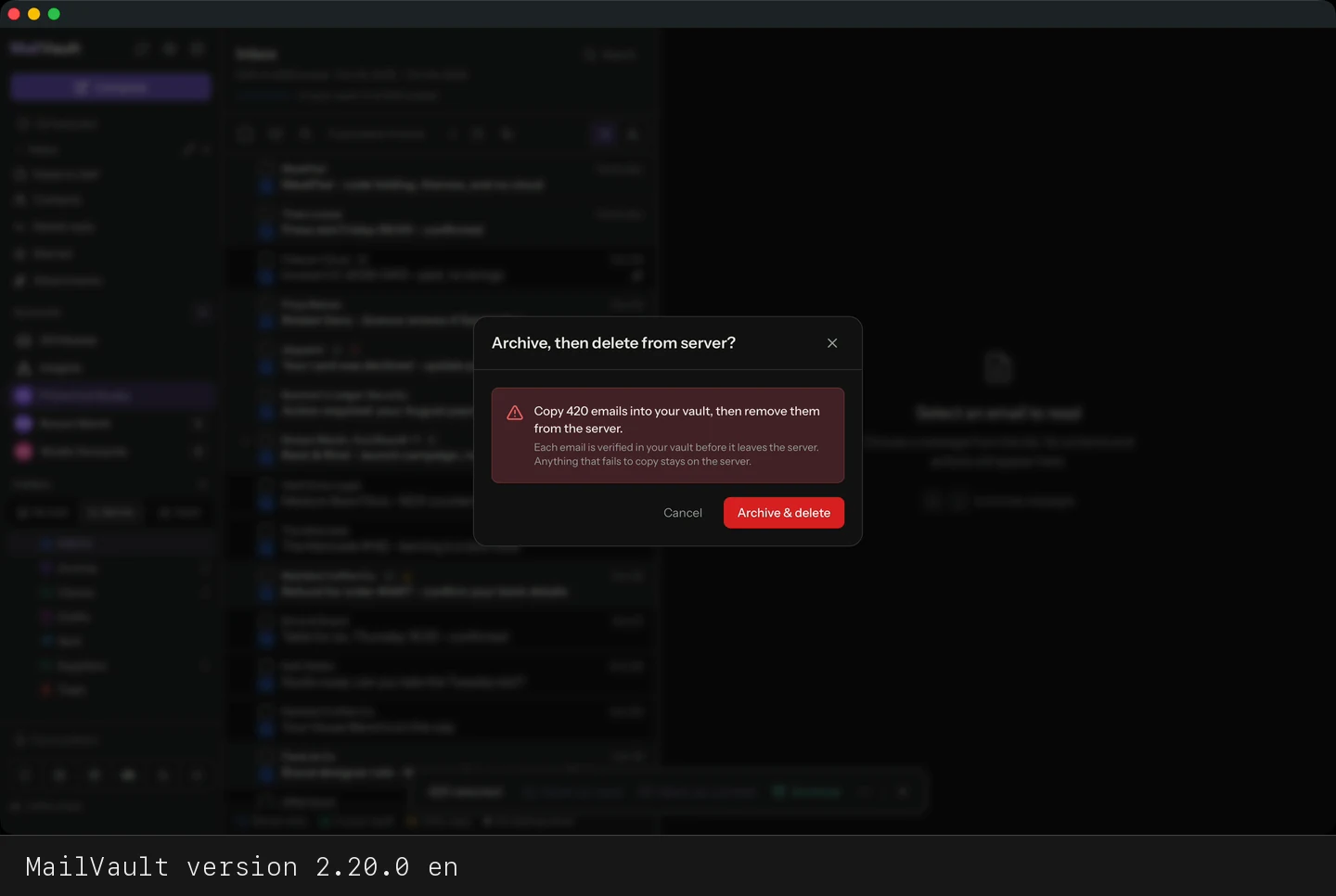
The confirmation names what will leave the server. When it finishes, the Server count drops and the Vault view still holds every archived email, searchable offline.
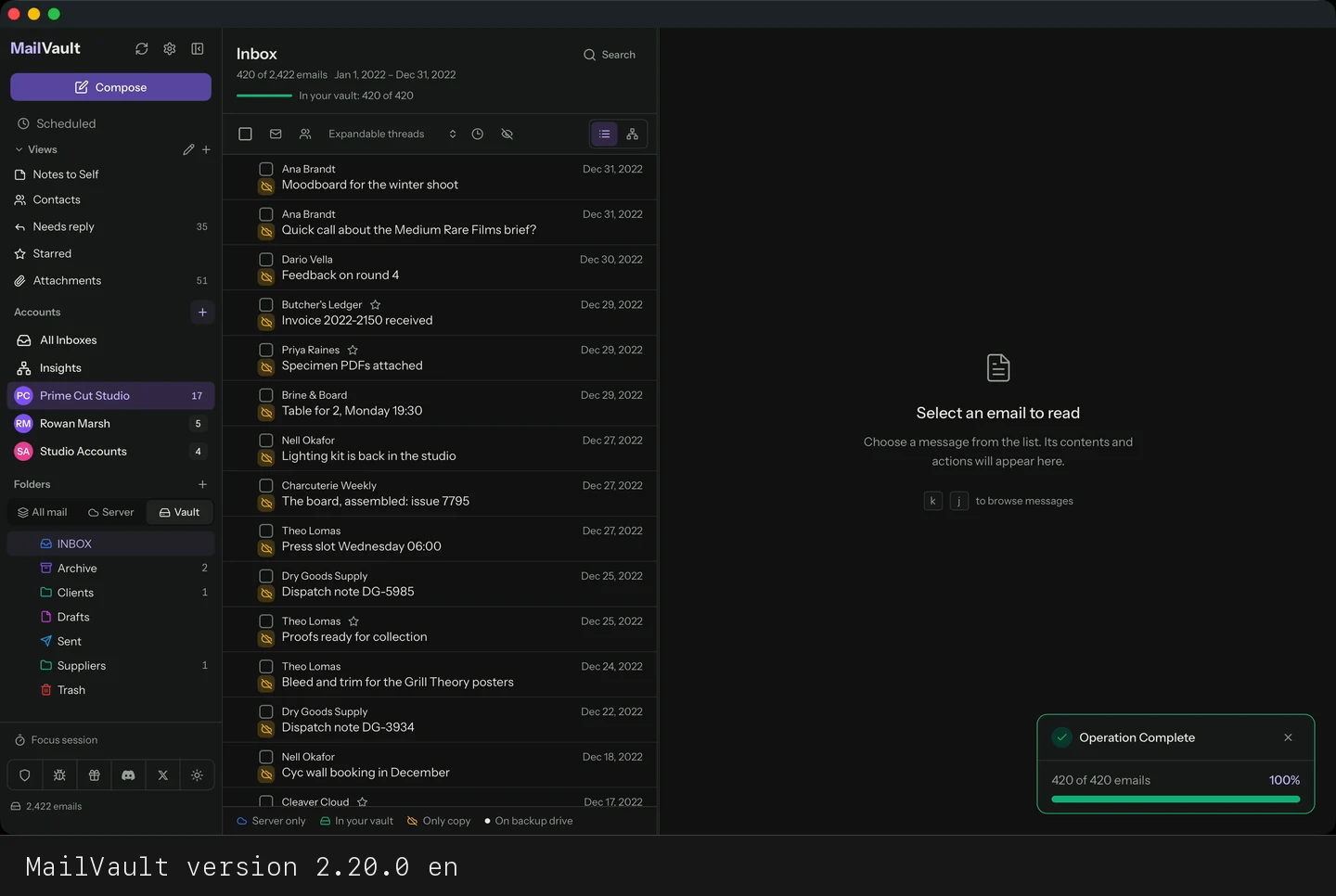
The vault keeps the emails the server no longer has.
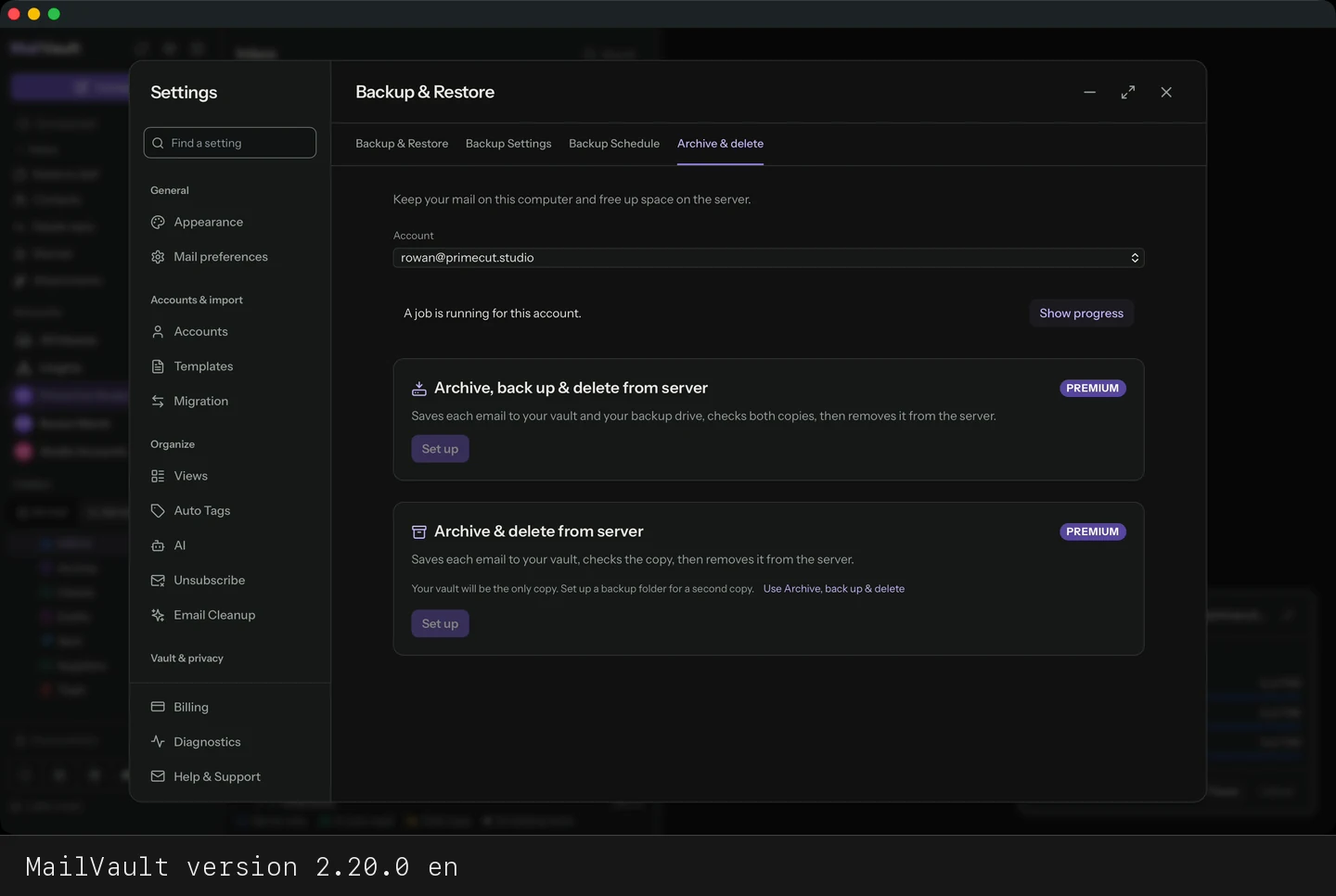
Archive and Delete from Server are free. Archive & Delete in one step, which checks each copy before it removes the server copy, is part of Premium. On the free plan, run Archive first, check a few messages in the Vault view, then run Delete from Server on the same years.
Clearing a whole account or several folders
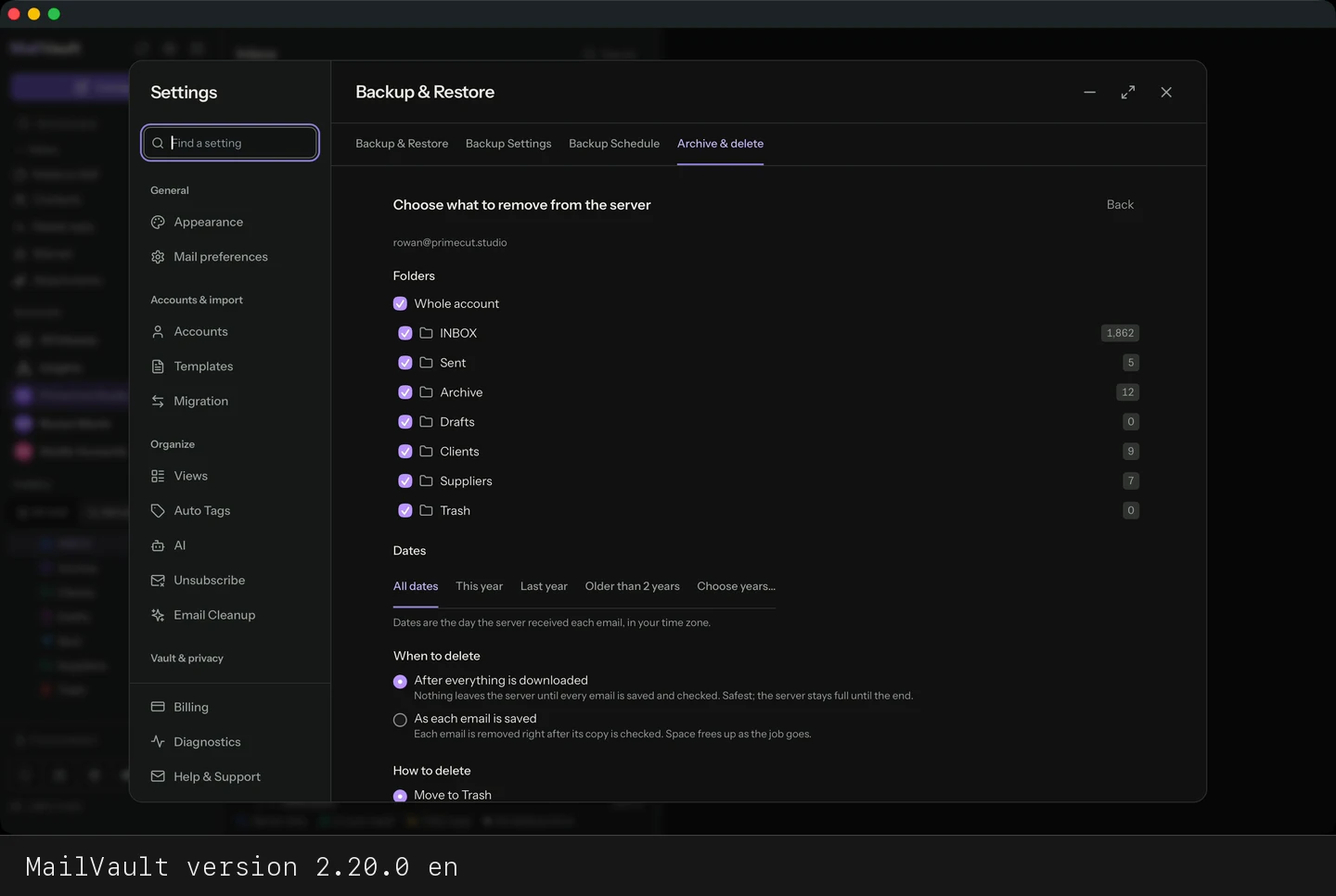
For a large clear-out across folders, Premium adds a job in Settings, Backup & Restore, Archive & delete. Tick the folders and years, choose whether emails leave the server as each one is saved or only when everything is saved, read the summary and start. It runs in the background.
Questions people ask
How do I delete thousands of emails at once in Gmail?
Search for the batch, for example before:2022/01/01, tick select all, use the link to select all conversations that match the search, then Delete. Empty Trash afterwards.
Is it safe to delete all my old emails?
Only once you have a copy of anything you may need: receipts, contracts, account emails. Archive those years to your computer first, check the copy, then delete.
Why does my storage not drop right after a big delete?
Deleted mail sits in Trash until it is emptied, and Google says the storage figure can take a day or more to update after a large clean-up.