
How to download all emails from your account
To download all your emails, export the whole account or save every required folder to a local archive. The right method depends on where the messages live: Gmail, Outlook, or another mailbox you access through IMAP.
Reviewed on .
Gmail: download the Mail export
In Google Takeout, deselect everything, select Mail and check that all mail is included. Request a one-time export. Download every part, extract the archives, and open the MBOX in a compatible reader. Gmail labels can overlap, so adding up label counts can count the same message twice.
Outlook: export the entire mailbox
In classic Outlook for Windows, download the full mail history if the account uses Cached Exchange Mode. Choose File, Open & Export, then Import/Export. Export to an Outlook Data File (.pst), select the account at the top of the folder tree and include subfolders. Open the PST afterward and check Sent Items and your oldest mail.
Other IMAP accounts: include folders beyond Inbox
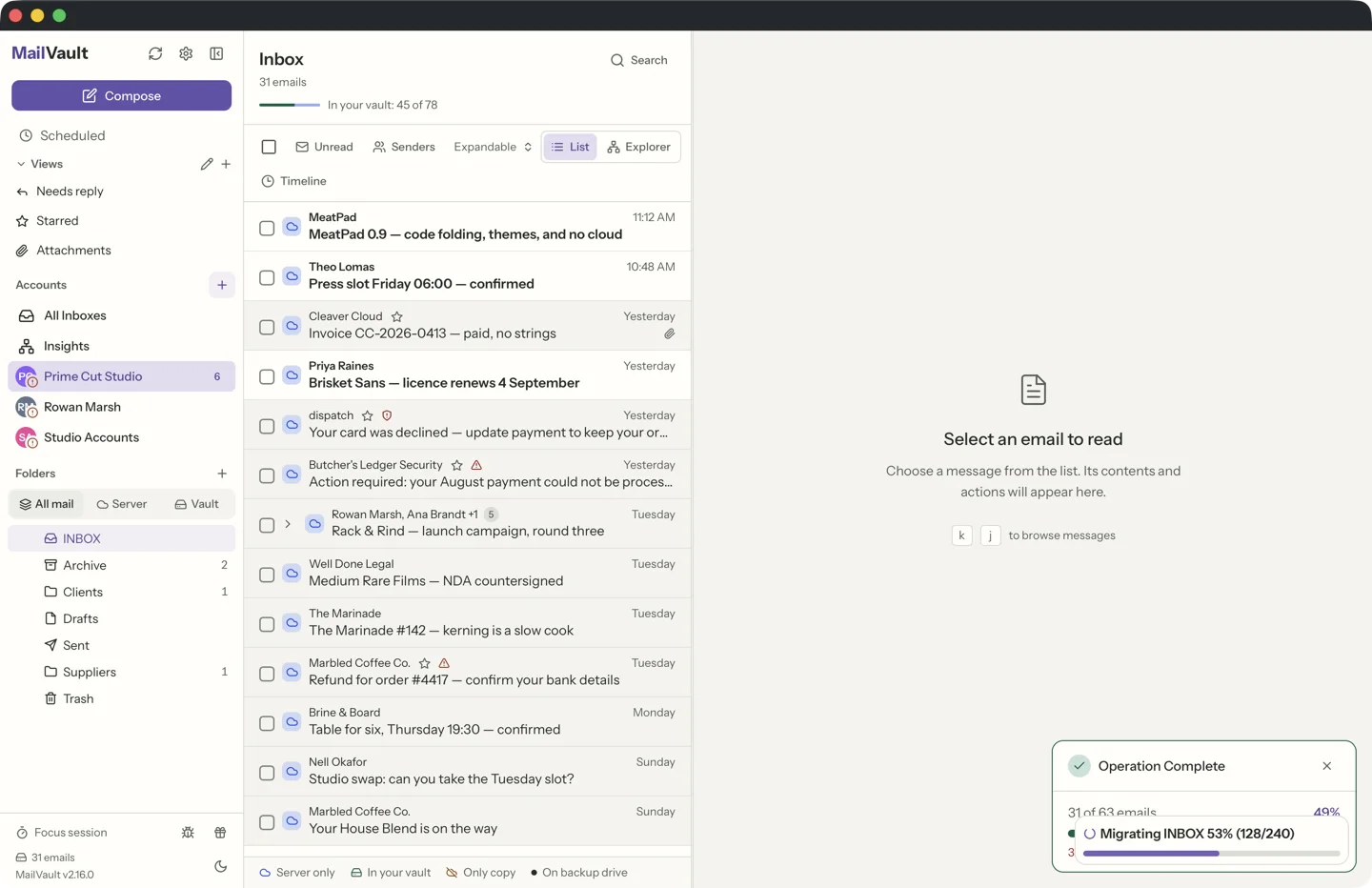
Check the folder list in webmail first. Include Sent, Archive and custom folders, plus Trash or Junk if you need them. In Apple Mail on Mac, let the mail download, select the mailboxes, then choose Mailbox > Export Mailbox. In MailVault, archive the folders you identified and wait for the operation to finish.
How to tell whether the download is complete
Disconnect from the internet. Open a recent message, the oldest one you expect, and an attachment from a different folder. Compare your local folder list with webmail and keep a second copy before closing an account or deleting server mail.