
How to Add Your Apple Account (iCloud Mail) to MailVault
Adding an iCloud address to MailVault takes about two minutes, with one Apple-specific step: iCloud Mail does not accept your regular Apple Account password from other apps. You create a separate app-specific password on Apple's site and paste that into MailVault instead. This works for @icloud.com, @me.com and @mac.com addresses.
Before you start
- Two-factor authentication must be turned on for your Apple Account. Apple only lets you create app-specific passwords once it is on.
- MailVault installed on your Mac, Windows PC or Linux machine. Download it free if you have not yet.
Step 1: Create an app-specific password at Apple
- Go to account.apple.com and sign in with your Apple Account.
- In the Sign-In and Security section, choose App-Specific Passwords.
- Choose the plus button next to Passwords to generate a new one.
- Type a label such as "MailVault" so you can recognize the password later, then choose Create.
- Apple asks you to confirm your Apple Account password. Enter it and choose Continue.
- Apple shows the new app-specific password. Copy it and keep it until you have pasted it into MailVault.
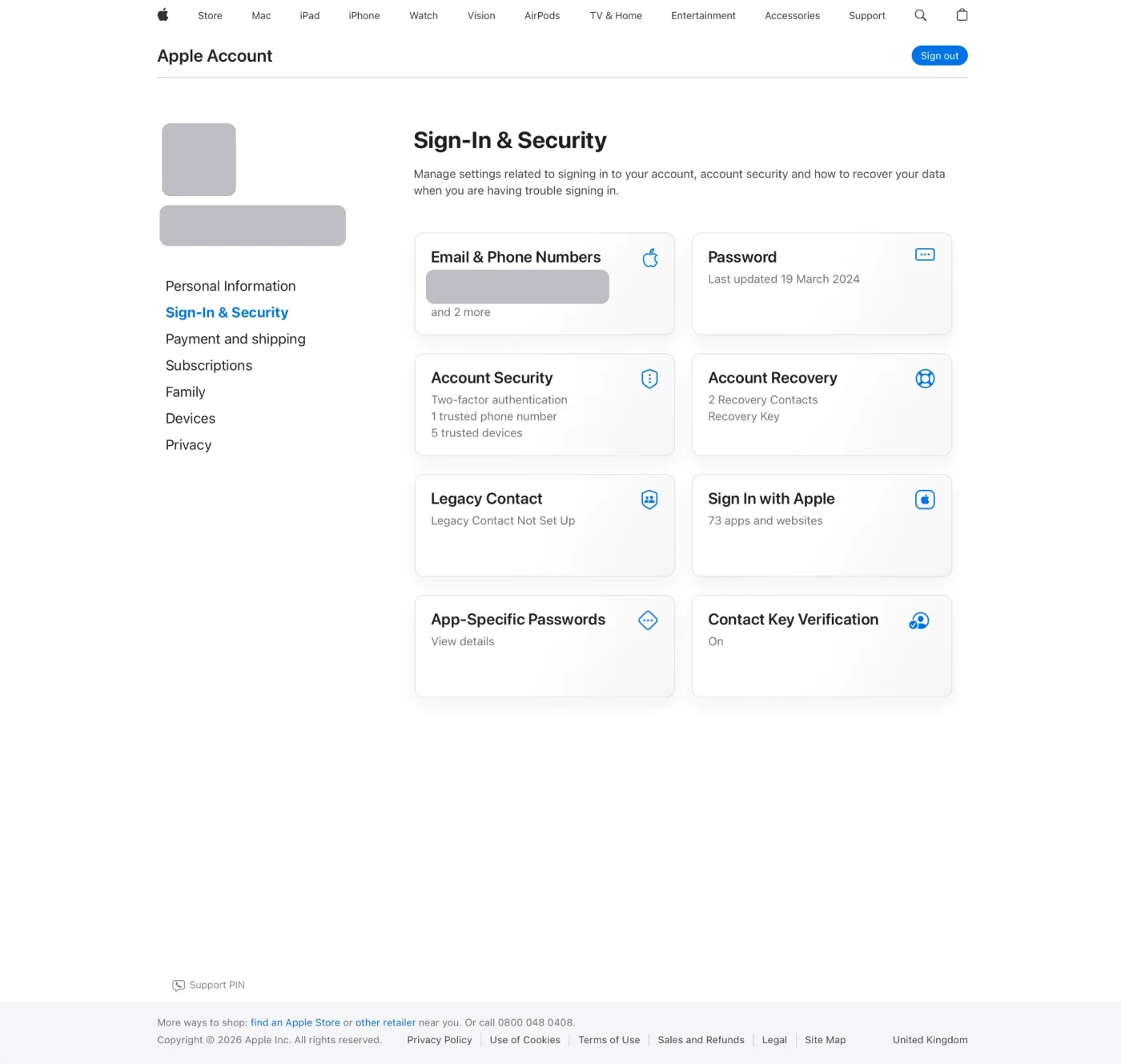
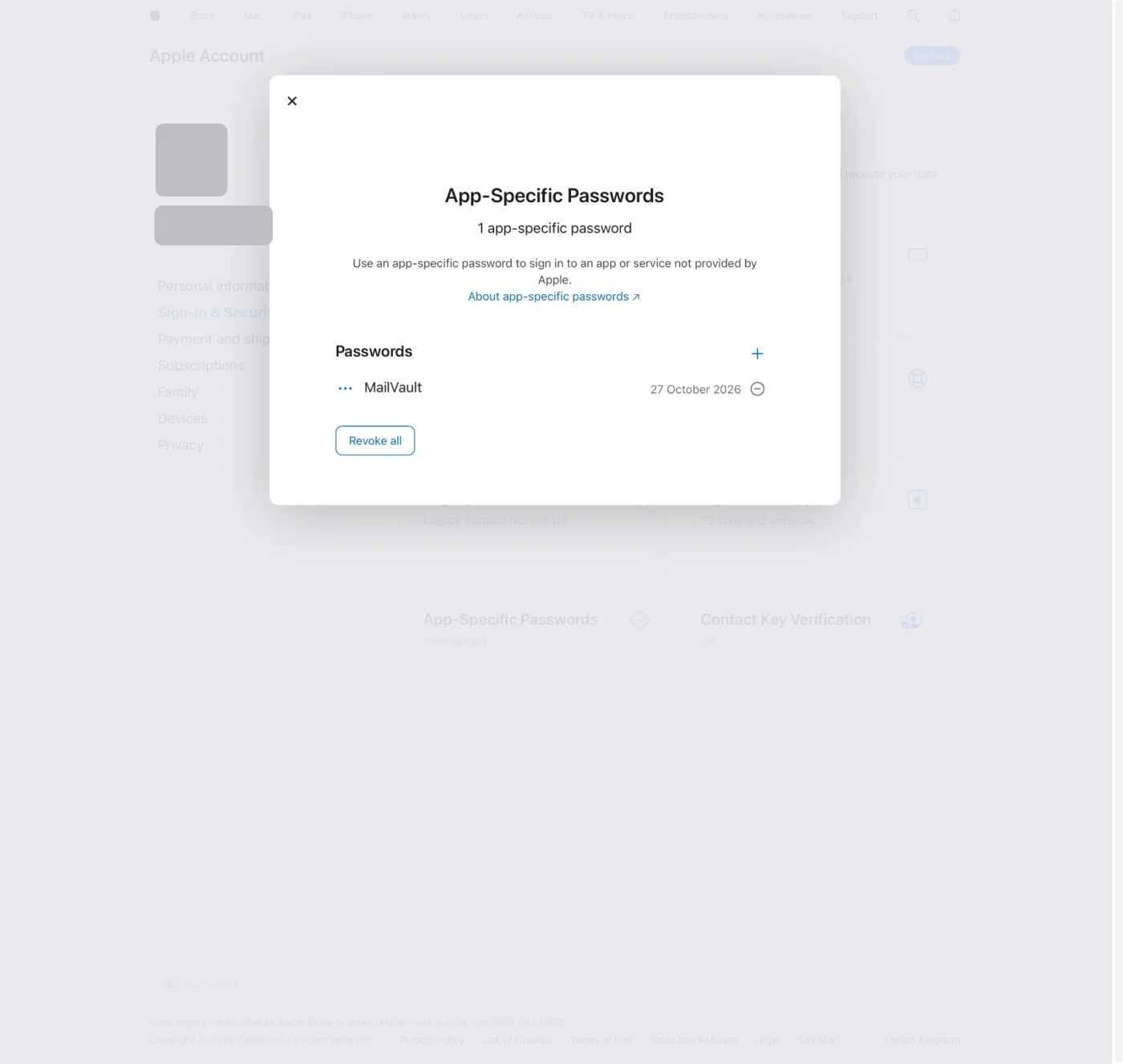
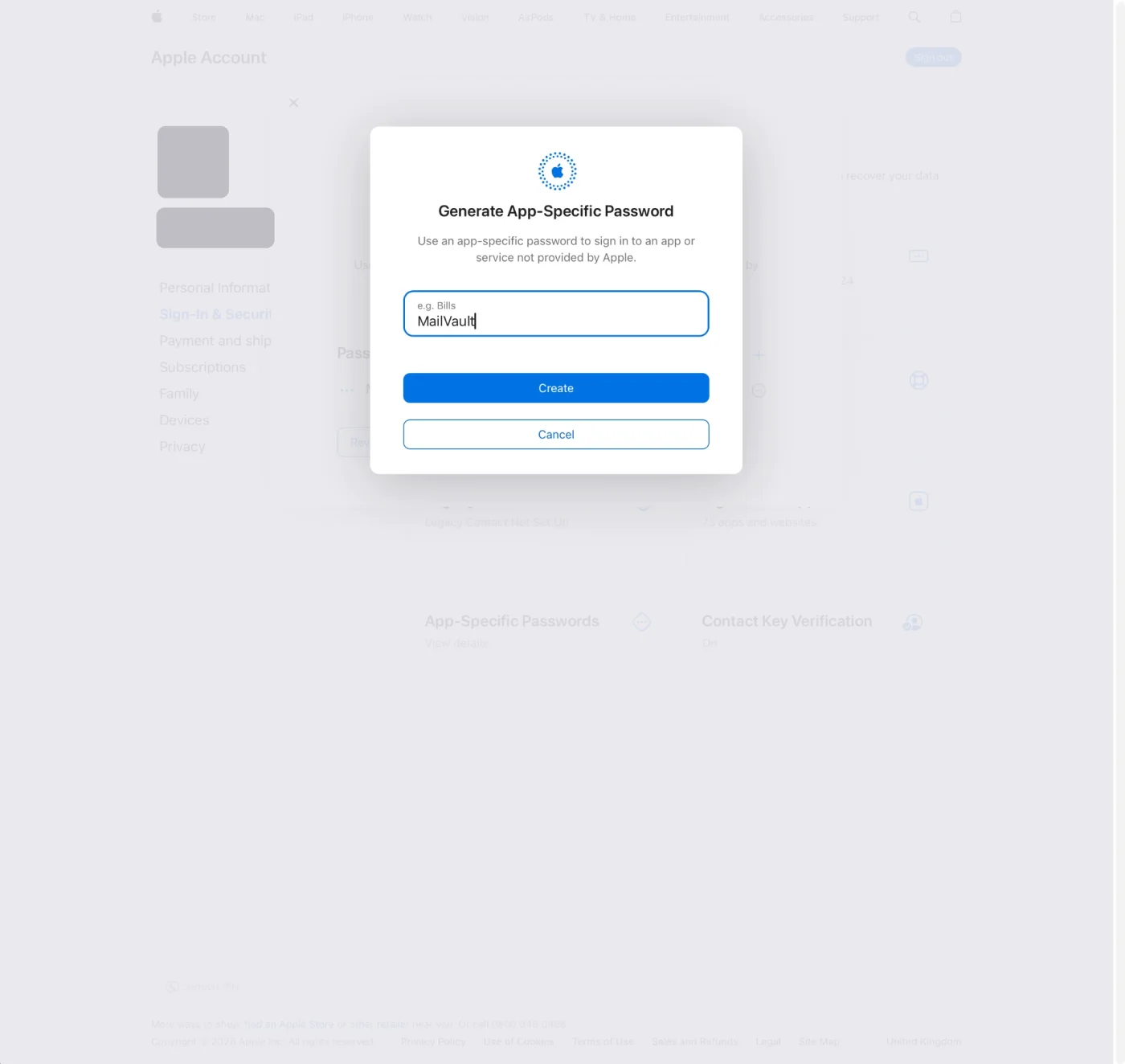
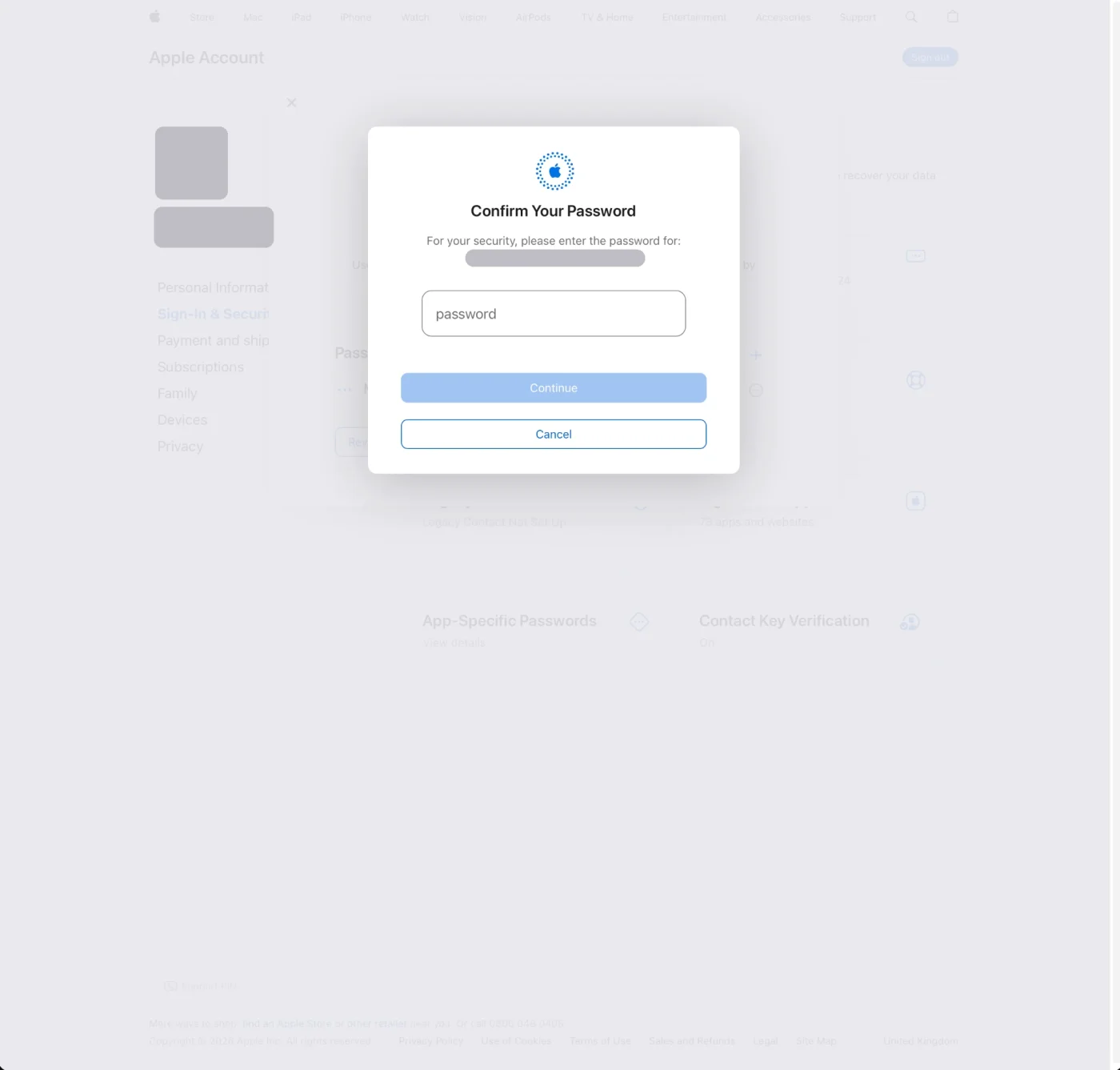
These steps follow Apple's own instructions: Sign in to apps with your Apple Account using app-specific passwords. Apple's menus change from time to time, so if a label looks different, that page is the authority.
Step 2: Add the account in MailVault
- Open the Add Account dialog and choose iCloud Mail.
- Enter your full iCloud address.
- Paste the app-specific password into the password field. If you are not sure where to get one, the small info button beside the password label explains the steps and links to Apple's page and to this guide.
- Choose Add Account. MailVault already knows iCloud's server settings, so there is nothing else to fill in.
Once the account is connected, MailVault downloads your folders and keeps each message as an individual .eml file on your own disk.
If MailVault cannot sign in
- You used your regular Apple Account password. It will not work here. Create an app-specific password and use that.
- You changed your Apple Account password. Apple revokes every app-specific password when the main password is changed or reset. Create a new one and enter it again.
- The password was revoked. Apple signs the app out when its password is removed from the App-Specific Passwords list. Generate a new one.
- Two-factor authentication is off. Turn it on first, then the App-Specific Passwords option becomes available.
Apple allows up to 25 active app-specific passwords at once. You can revoke a single one, or all of them, from the same page.
iCloud Mail's server settings
MailVault fills these in for you. They are listed here in case you set up another app by hand, as published on Apple's iCloud Mail server settings page.
- IMAP server:
imap.mail.me.com, port 993, SSL/TLS. - SMTP server:
smtp.mail.me.com, port 587, authentication required. - Password: the app-specific password, for both incoming and outgoing mail.
iCloud Mail supports IMAP and SMTP only, not POP.
Keep your iCloud mail on your own disk
MailVault connects to iCloud Mail with an app-specific password and stores every message as a searchable .eml file. Free, with the source live on GitHub.
Frequently Asked Questions
Do I need an app-specific password to add iCloud Mail to MailVault?
Yes. MailVault signs in to iCloud Mail over IMAP, and Apple requires an app-specific password for that, not your regular Apple Account password. Your Apple Account needs two-factor authentication turned on before you can create one.
Where do I create an app-specific password?
Sign in at account.apple.com, open Sign-In and Security, choose App-Specific Passwords and generate a new one. In MailVault, the small info button beside the password field explains these steps and links to Apple's instructions.
Why does MailVault say my iCloud sign-in failed?
The usual causes are using your regular Apple Account password instead of an app-specific one, an app-specific password that was revoked, or a password reset on your Apple Account. Changing your Apple Account password revokes every app-specific password, so create a new one and enter it again.
How many app-specific passwords can I have?
Apple allows up to 25 active app-specific passwords at a time. You can revoke one, or all of them, from the same App-Specific Passwords page.
Related reading: how to export iCloud Mail to your computer, email provider FAQ, and how local IMAP archiving works.