
How to Find Emails You Haven’t Replied To
By MailVault · 4 min read
You open a client’s email between meetings, decide to answer later, and move on. By the afternoon it is no longer unread. The unread count looks manageable, but the question is still waiting.
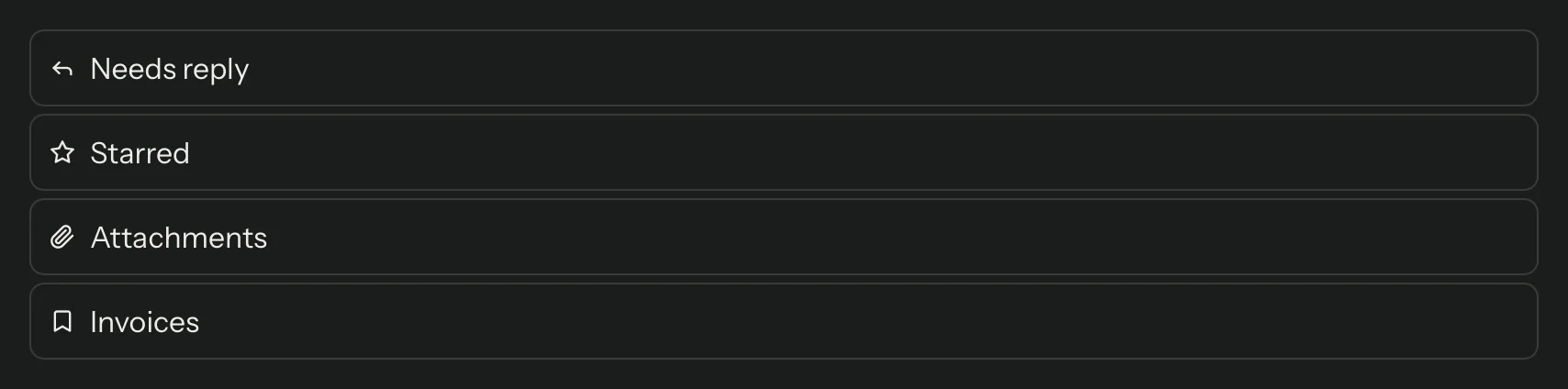
To find emails you have not replied to, use a view based on reply status, then review the actual conversations. MailVault’s Needs reply starter view brings recent messages addressed to you into one place when they are not marked answered. It works across your connected accounts, using the mail indexed on your computer.
Opening a message and answering it are different actions. Giving unanswered messages their own review list makes that difference visible.
Start with the Needs reply view
In the sidebar, open Views → Needs reply. If you have renamed or removed the starter, check Settings → Views. Existing views can be edited there, and a saved search can also become a view.
Let your accounts sync and the local index catch up before relying on the results. A view searches the information available to MailVault; it cannot prove that an account or folder you have not loaded contains no unanswered mail.
What the default list includes
The unmodified Needs reply starter selects messages that meet these conditions:
- They are addressed to you.
- They were not sent by you.
- They are not marked answered.
- They fall within the last 30 days.
- They are outside folders identified as Trash, Junk or Archive.
You can edit the view, so check its current filters if your results differ. The date window matters: an unanswered request from six weeks ago falls outside the default view even if it still needs your attention.
Needs reply uses a message’s answered flag. It does not infer whether the whole conversation is resolved. A notification may never require a reply. A reply sent as a new message, or from another app that did not update the original’s flag, may leave that original in the list. A message marked answered may still contain work you promised to do.
Turn the results into a short daily review
- Open the original message and read the conversation. Check whether a later exchange already answered the question.
- Reply when you have the answer. If the same explanation comes up repeatedly, use a saved reply template and adapt it to this person.
- Star a message when work remains. A draft or an acknowledgment does not necessarily finish the task. Keep your own signal for items that still need action.
- Review the Starred view as well. Clear the star when your action is complete, rather than using read/unread as a substitute for done/not done.
Use a consistent meaning for a star, such as “I still owe an action.” If you already use stars for favorite messages, choose a dedicated manual tag instead. A flag only helps when you know what you meant by it.
Keep longer follow-ups outside the 30-day window
Some requests wait on a supplier, a decision or a date farther away. Use the Starred starter view for those items: unlike the Needs reply starter, its default definition has no date window. If you use a follow-up tag instead, make a saved view filtered by that tag and leave the date range unrestricted.
You can also widen the Needs reply date range in Settings → Views. Do that when you want to review older unanswered mail, and expect the list to grow. A separate task list is often easier to maintain than treating every unanswered message as an obligation.
Saved views do not move or duplicate the underlying messages. One email can appear in Needs reply, Starred and Attachments at the same time. Opening a different view changes the selection you see, not where the mail is stored.
If an expected message is missing
Check the account, date range, recipients, answered status and folder. A request addressed only to a mailing list or an address MailVault does not recognize as yours may fail the “to me” condition. An archived message is excluded by the starter’s folder filter. Broaden the filters or search for that specific message to understand which condition removed it.
For a request with a firm deadline, add a separate reminder to your normal calendar or task system. This view is a review tool, not a guarantee that every commitment will be surfaced at the right time.
What is included free?
MailVault includes three saved views free, including the starters: Needs reply, Starred and Attachments. You can edit or replace them. If you already have three, remove an unused view before adding a custom one, or use Premium for more. Deleting a view removes its saved filter, not the messages it displayed.
See the saved views feature page for the broader filtering options. For a daily routine, start with two questions: what have I not answered, and what have I already answered but still need to do?
Give unanswered mail a place in your daily review.
Try this workflow in MailVault. Available for macOS, Windows and Linux.